Email Assistant AI Employee
From drafts to delivery - Emmie keeps your inbox clean and campaigns moving. You're about to try the first AI email assistant that’s actually smart, fast, and extremely easy to work with.


Understands your business, inbox, audience and intent at scale.

Creates ready-to-send emails, summaries and reports.
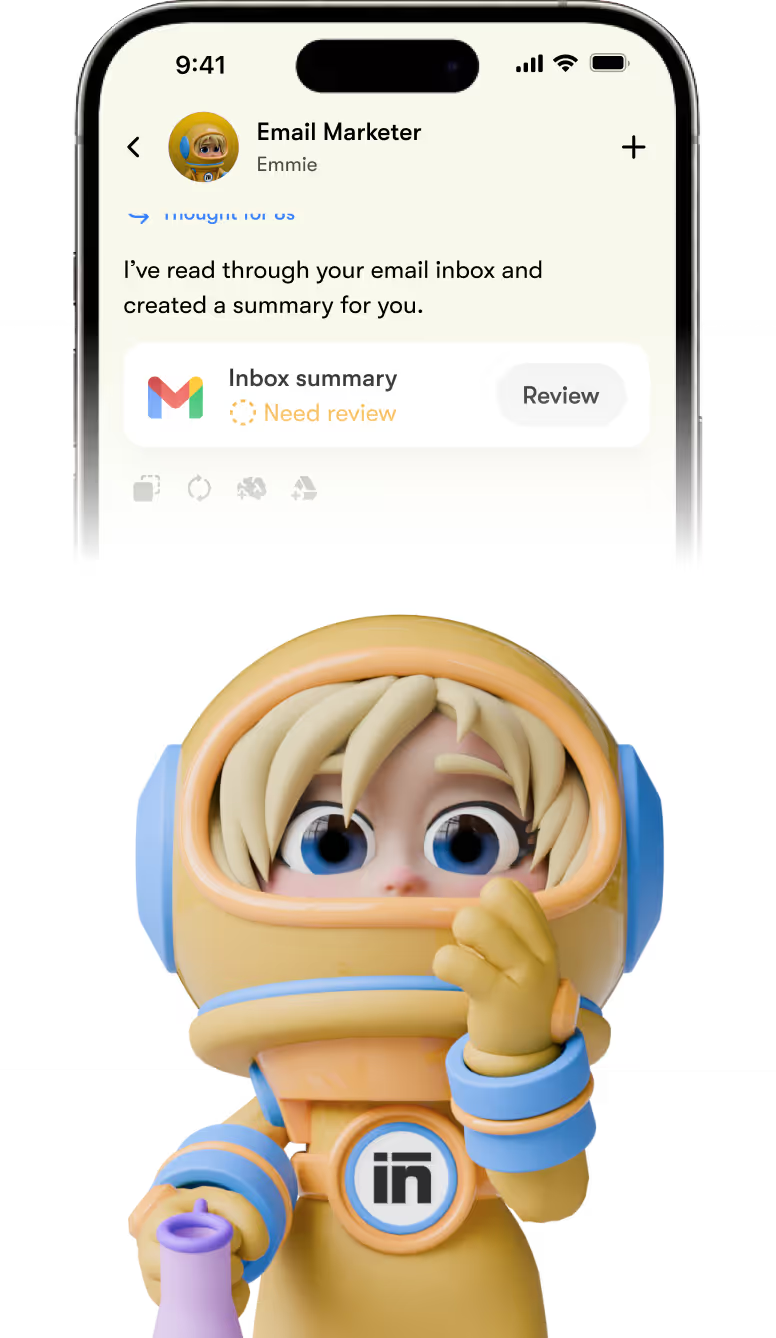
Plans, schedules, and reviews performance.
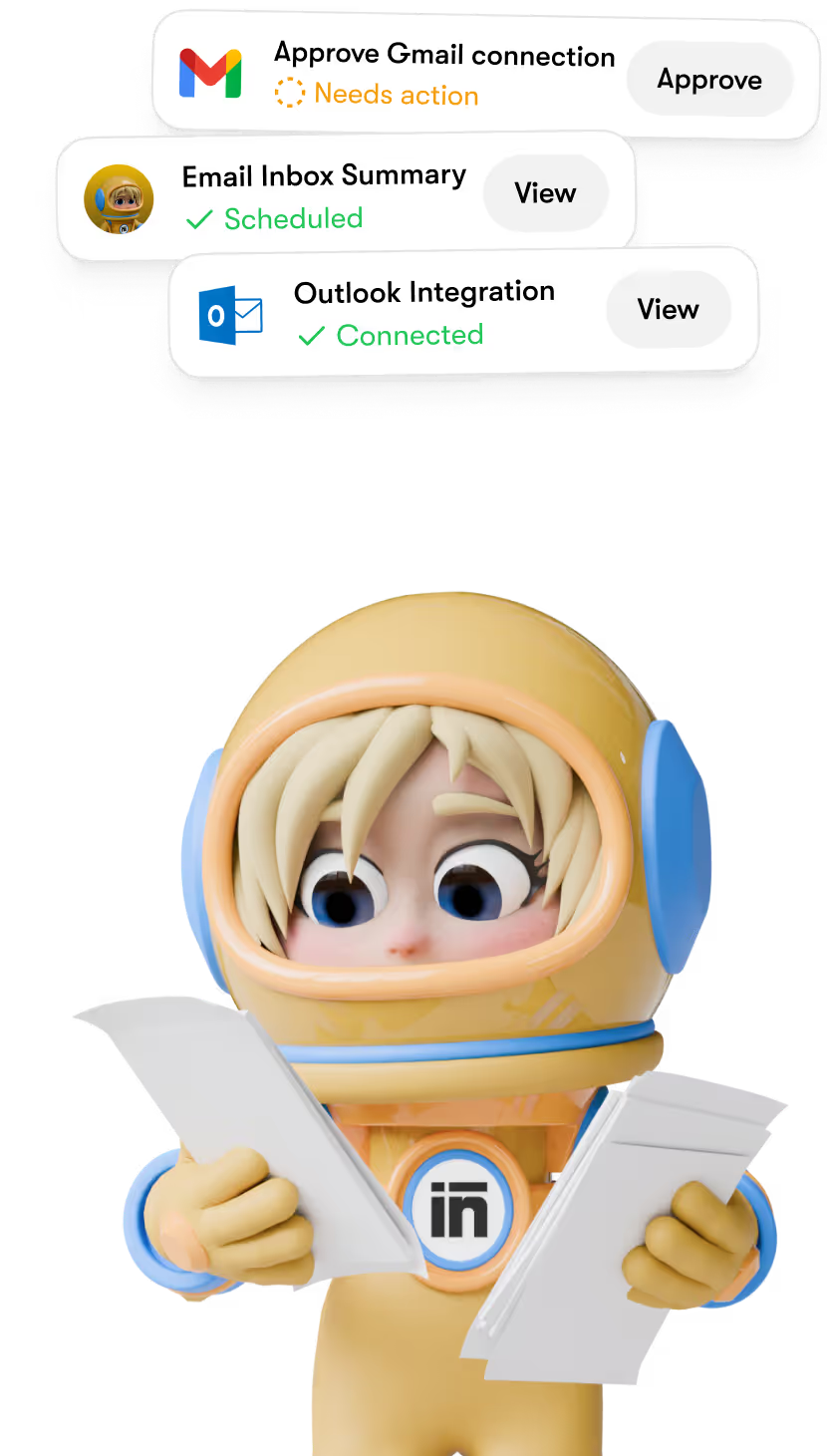
Keeps your email marketing running even when you sleep.

Most teams don’t fail at email marketing - they abandon it.
Not because email doesn’t work, but because it becomes another thing to manage. Emmiemakes it sustainable by running smoothly in the background.
One AI email agent - no extra labor required.

Get started in minutes
Getting started with our AI for email marketing is super simple. Create an account with Sintra AI, set your preferences, and let Emmie take it from there.
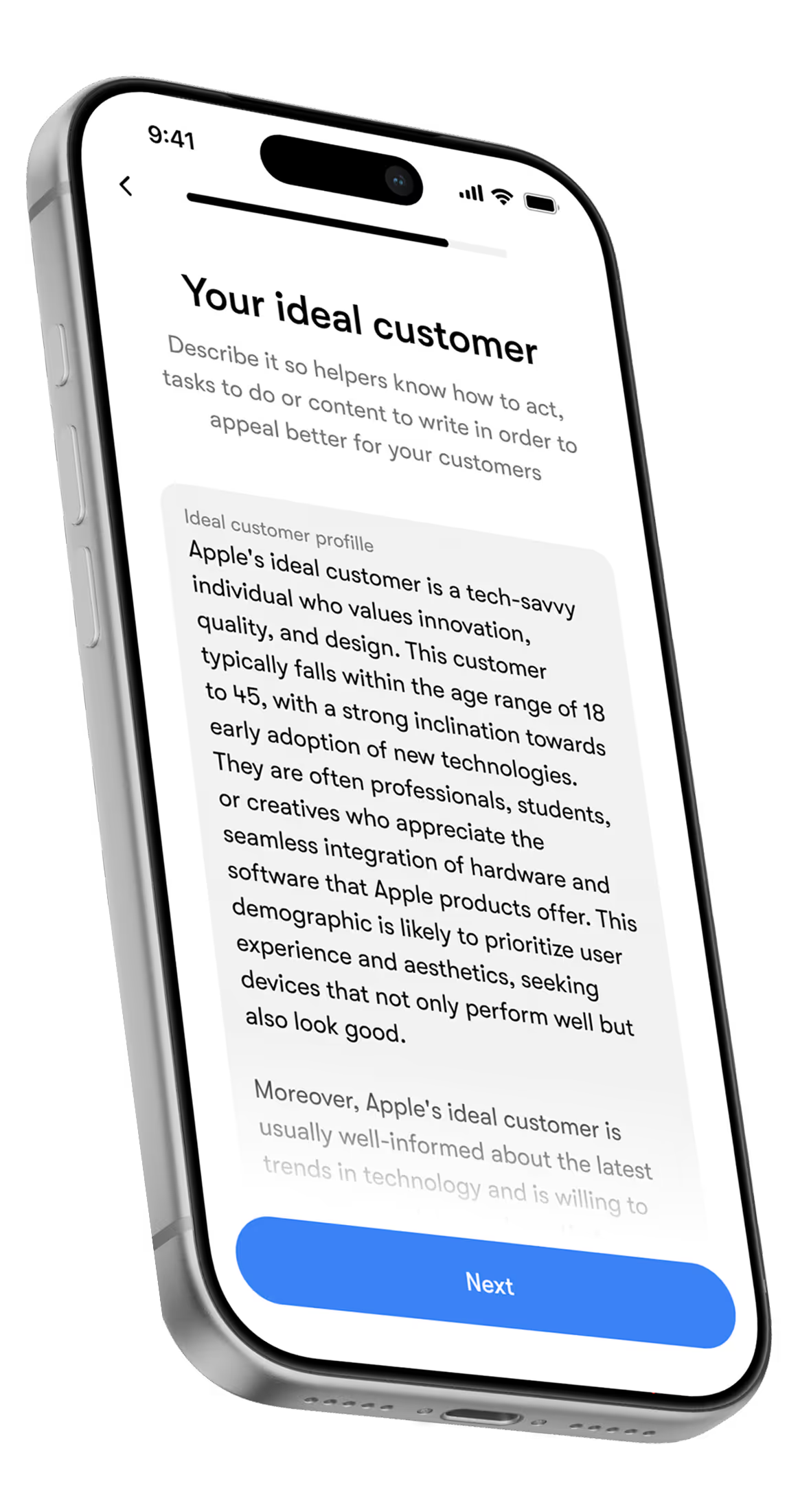
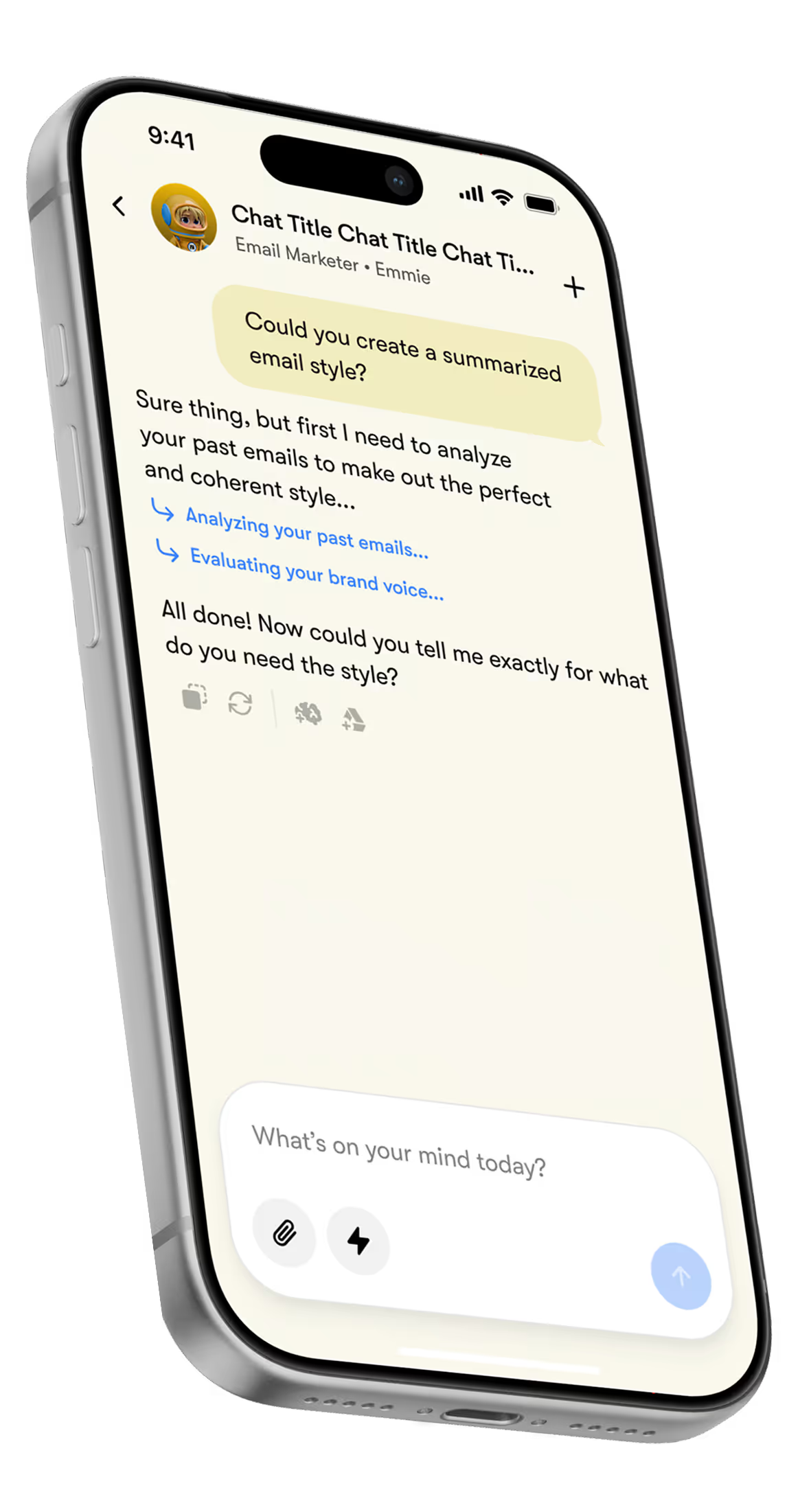
Explain your business
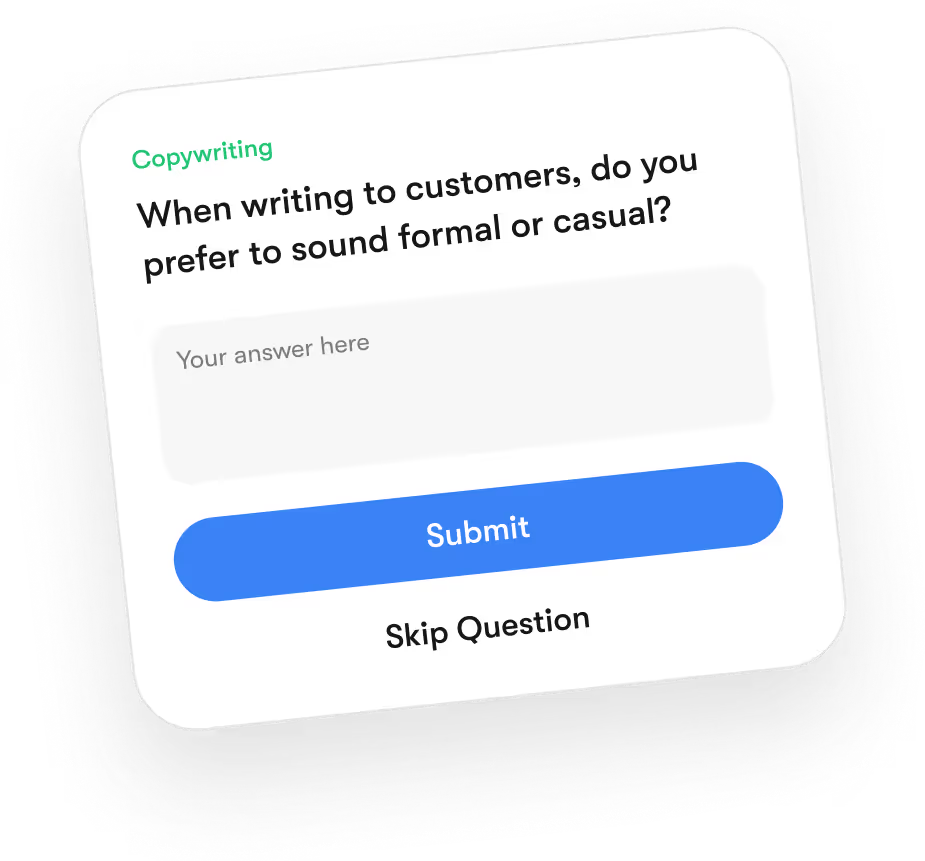
Add your brand, audience, and goals once. Tell your assistant what you sell, who you’re talking to, and how you want to sound – so every email reflects your positioning from day one.
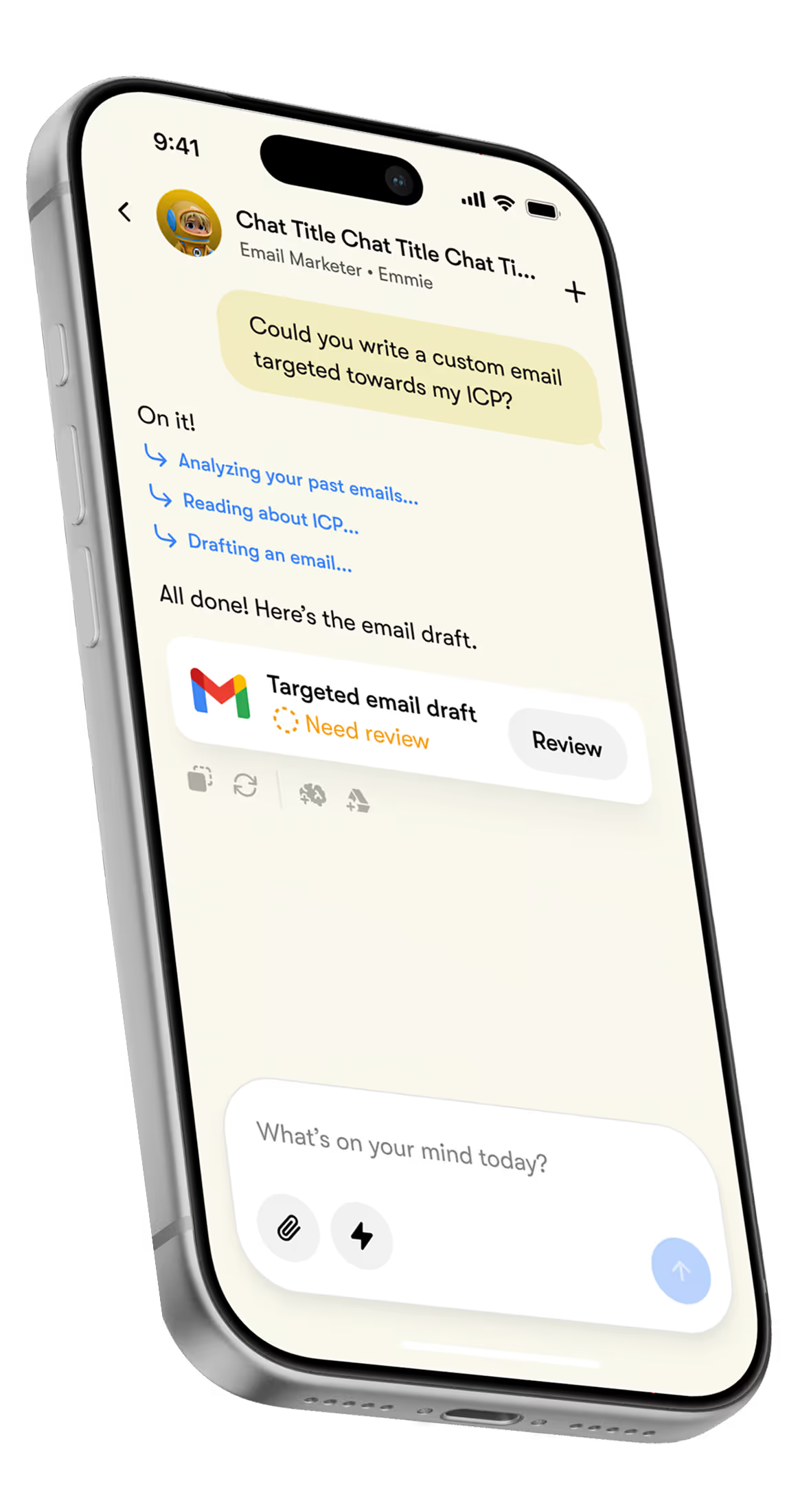
Plug your email tools
Link the platforms Sintra supports through Brain AI, so your AI can work with your copy, documents, and past campaigns in one place.
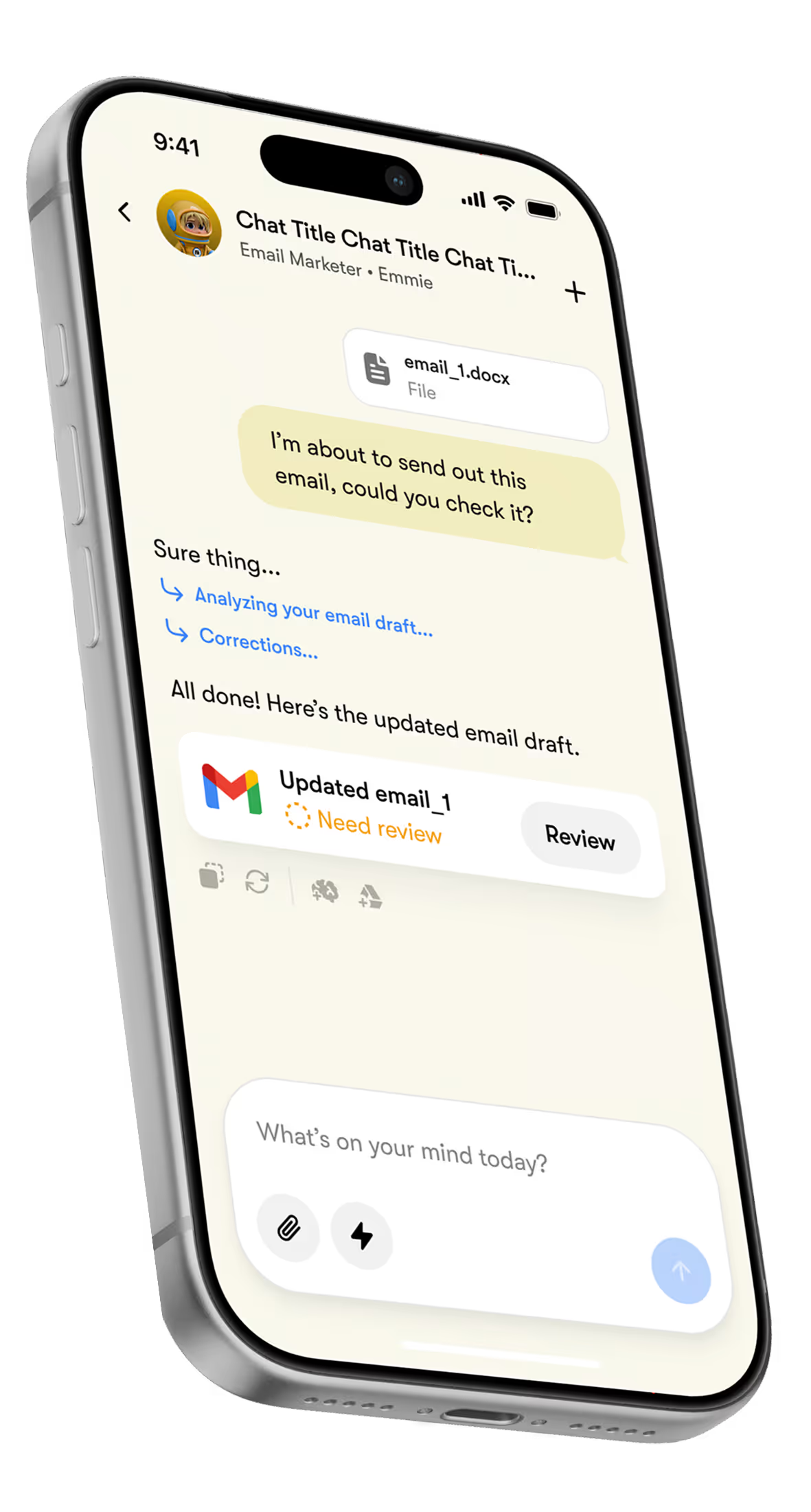
Set the email strategy once
Tell Emmie what to send and when. Discuss and define campaigns, flows, frequency, segments, and KPIs – so she knows exactly what success looks like.
Stay in control
You decide what goes out. Review, tweak, or approve emails before they’re scheduled – no surprises.
Your first AI email marketing tool that knows what to do
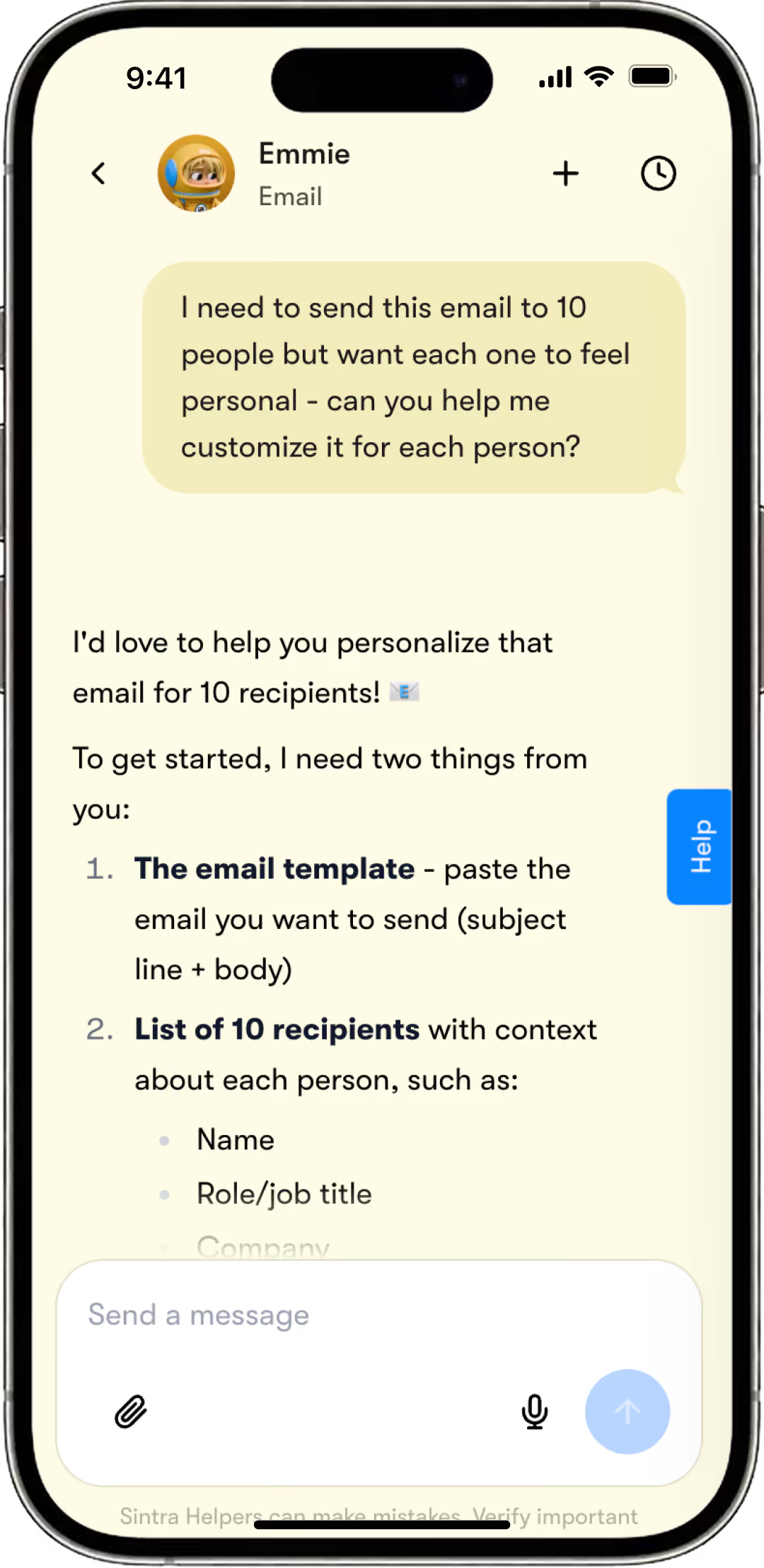
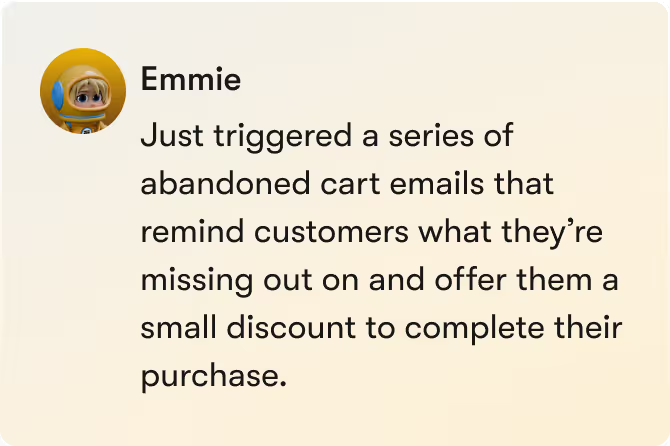
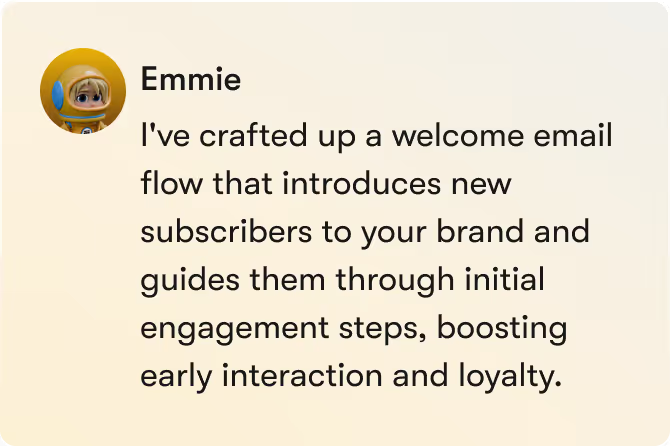
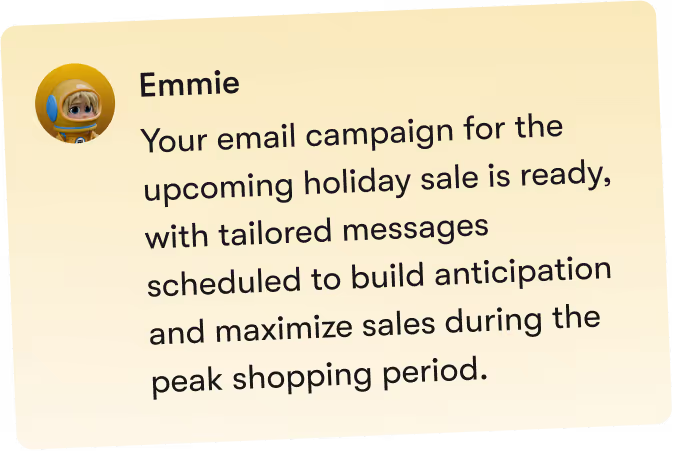
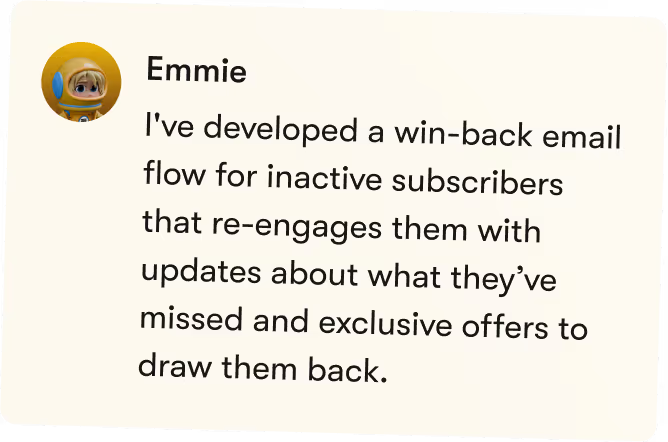
Our AI email marketer turns strategy into a steady, repeatable system that doesn’t break when things get busy.
Emails go out consistently, shaped by real performance - not guesswork. Your lead list stays engaged without being top of mind.
Email marketing runs in stealth mode. Your team stays focused on what actually grows revenue.
Create an email marketing strategy
Define goals, audiences, and campaign types.
Build campaign plans
Turn strategy into clear, actionable sends.
Create email roadmaps
Map newsletters, launches, and automations across weeks and months.
Generate email content
Create subject lines, bodies, CTAs, and variations ready for review.
Identify quick wins
Spot high-impact emails worth sending fast.
Surface engagement signals
Highlight what’s resonating and what to double down on.
Provide expert-style insights
Turn email data into clear recommendations.
Analyze performance trends
Track opens, clicks, and conversions over time.
Coordinate win back campaigns
Recover lapsed customers with targeted offers and tested messaging.
Send weekly recaps & summaries
Summarize sends, performance, and next priorities.
Summarize campaign results
Turn outcomes into clear takeaways and learnings.
Your email marketing,
on easy mode.
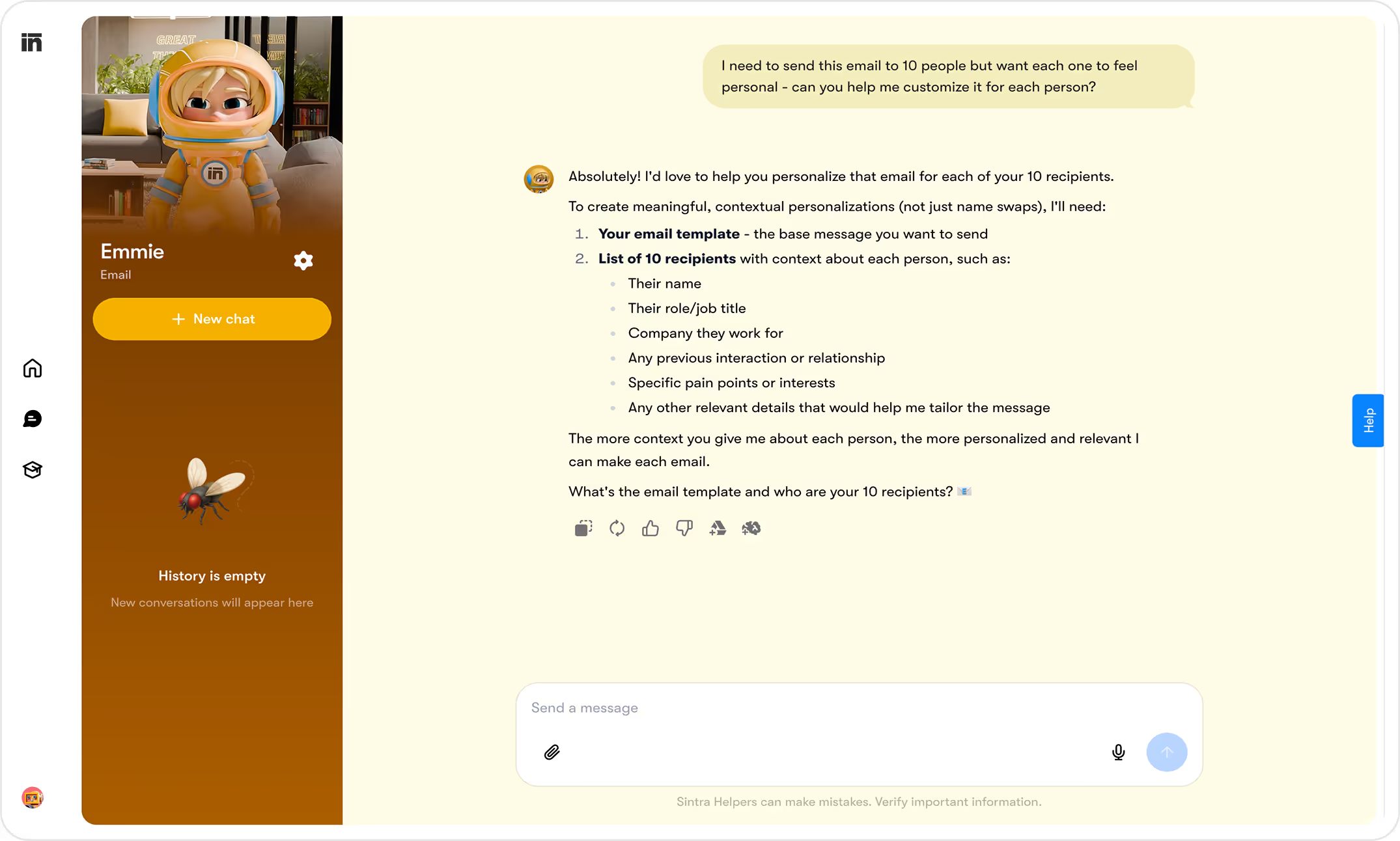
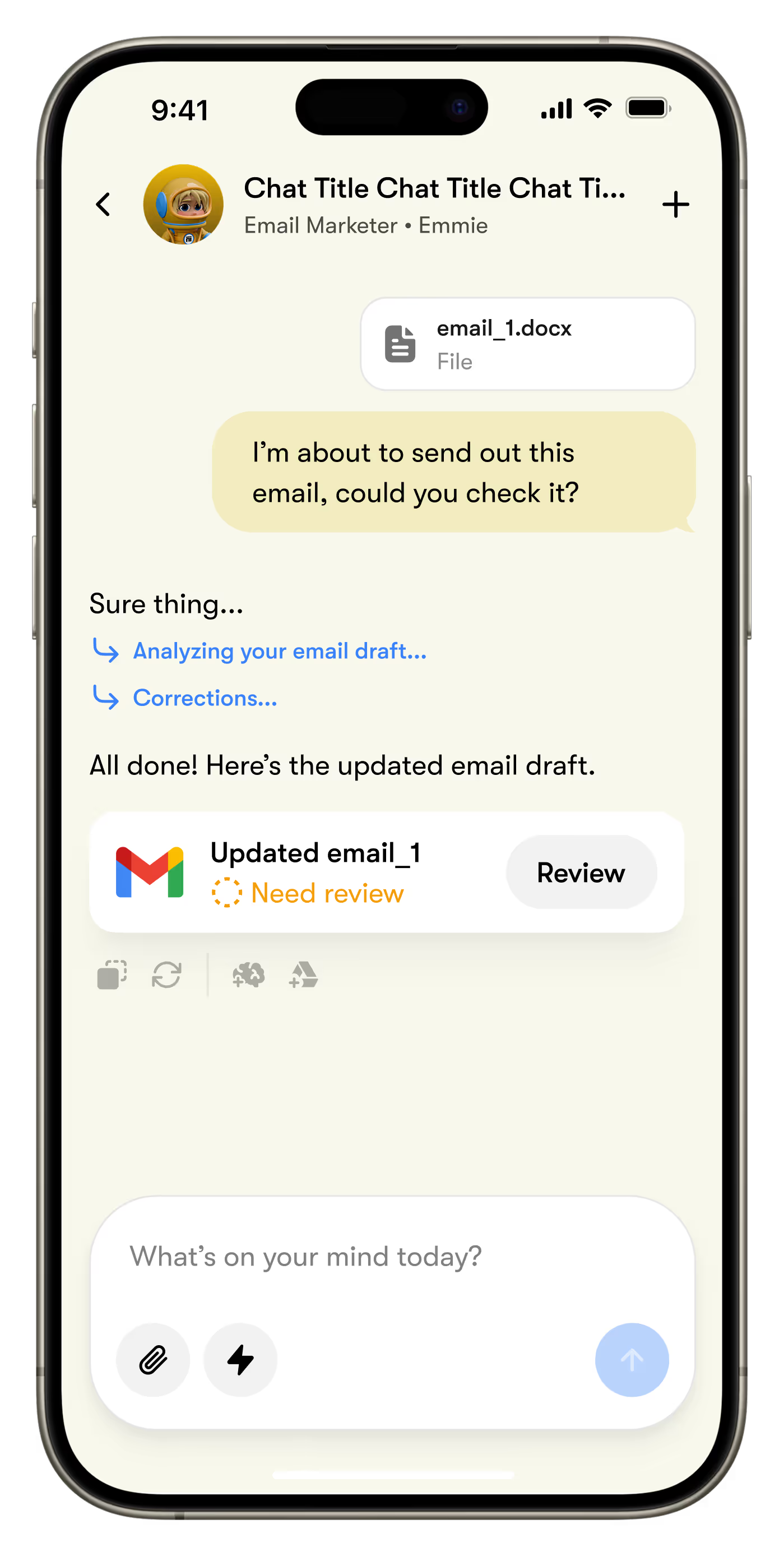



Predictable output. Campaigns ship without recurring planning sessions or last-minute drafts. Take back your time.
Fewer bottlenecks. No chasing approvals or juggling tools, your AI email assistant reduces friction by default.
Built for scalable email. Handle growing lists and campaigns without added complexity.
Powered by great models. Emmie uses the right approach for copy, structure, and optimization, without you choosing tools.


Emmie has examined millions of best performing emails, so you don't have to.
More than
3M+
emails generated
Available
24/7
on demand
More than
35,000
email accounts managed
More than
1.5M+
campaigns prepared
Shaped by real email performance.
Experience creates intelligence.
Trained on real-world email data, AI email helper understands what drives engagement and conversions. Every insight becomes practical action, helping you send smarter and faster. Balanced, reliable, and built to fit real workflows.
Supported by Brain AI
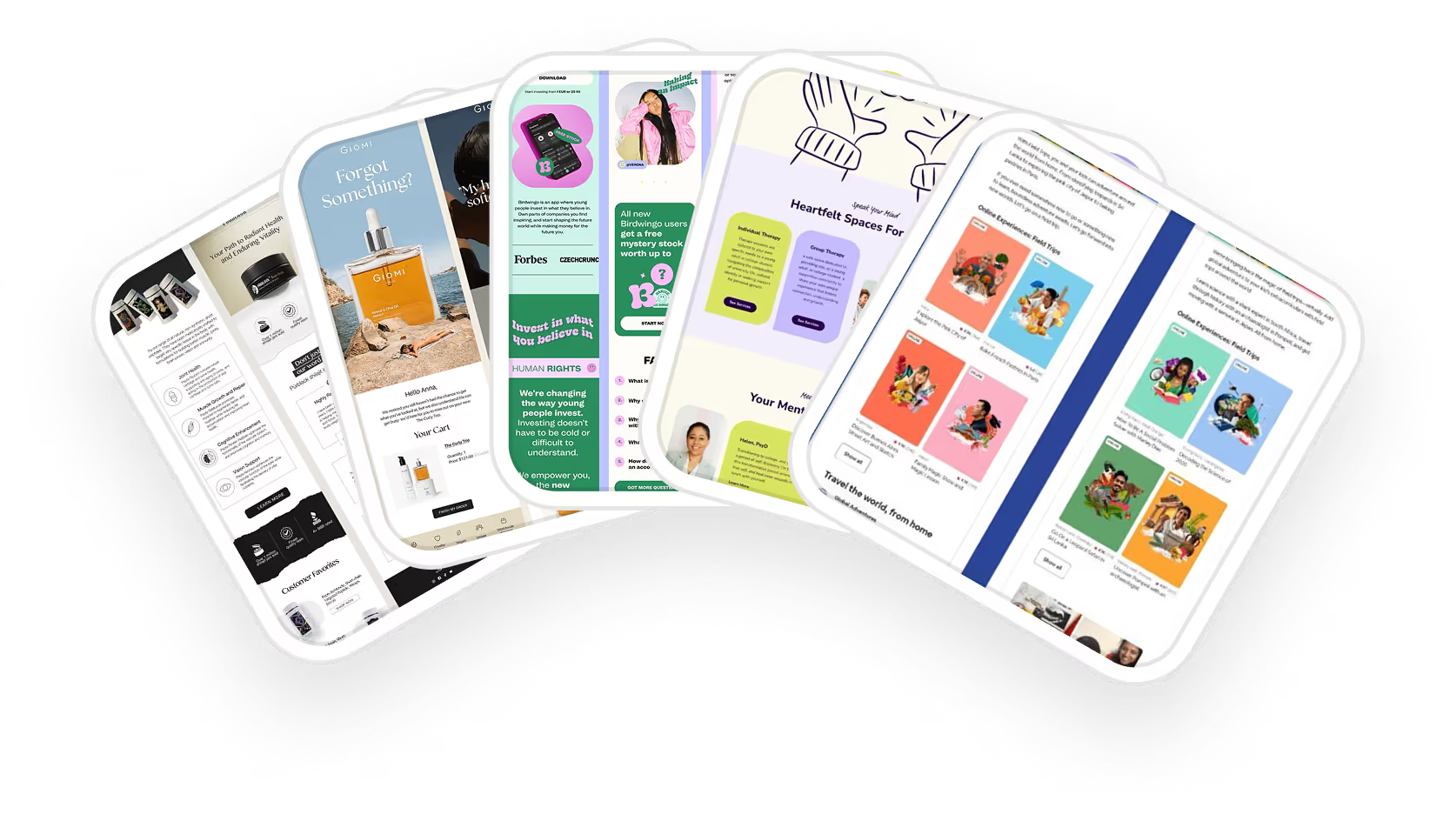



All your email context in one workspace - a centralized memory index that brings together your brand, audience insights, and past decisions for Emmie, so nothing gets lost even if you launch a new chat.
1. Always up to date
Brain AI stores your email strategy and preferences, so Emmie stays aligned as things evolve.
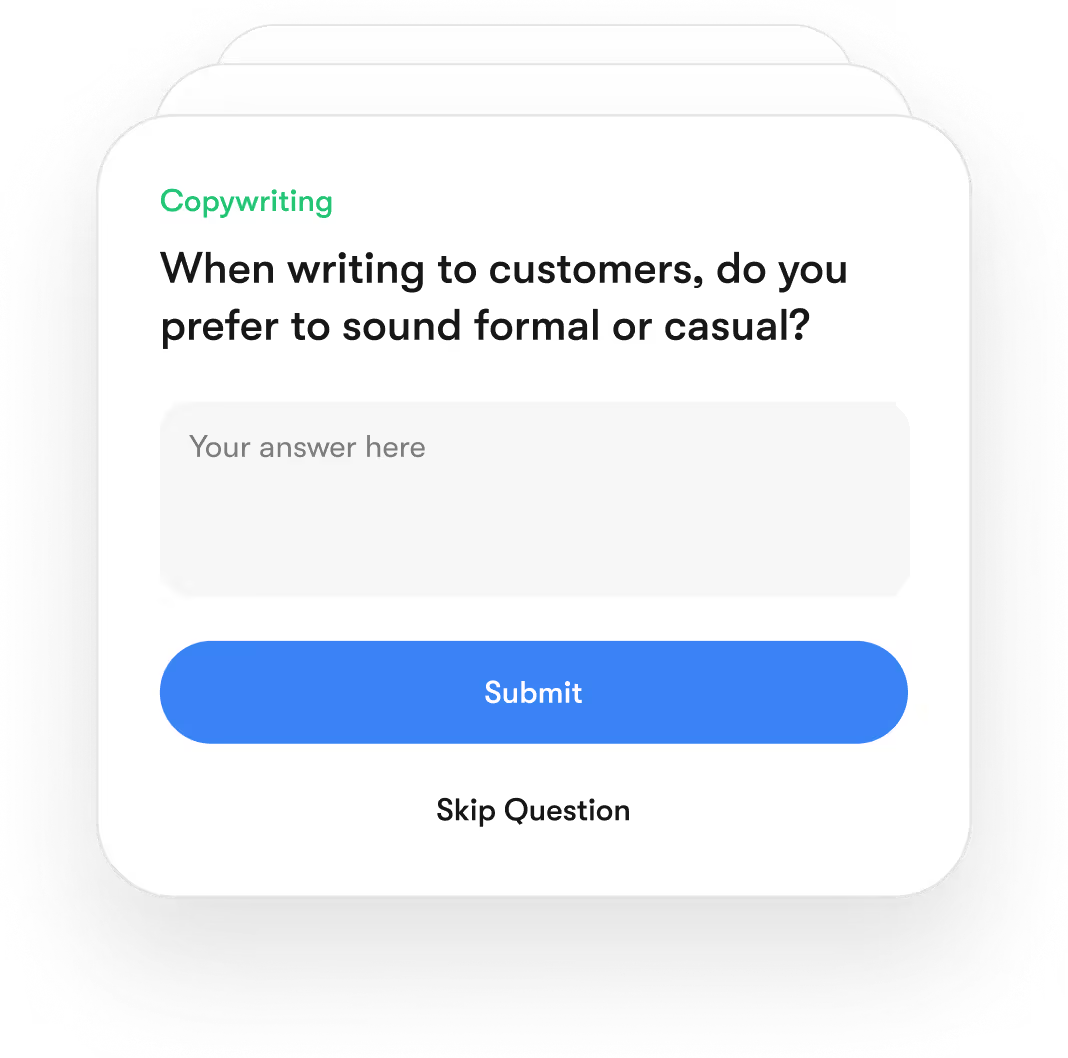
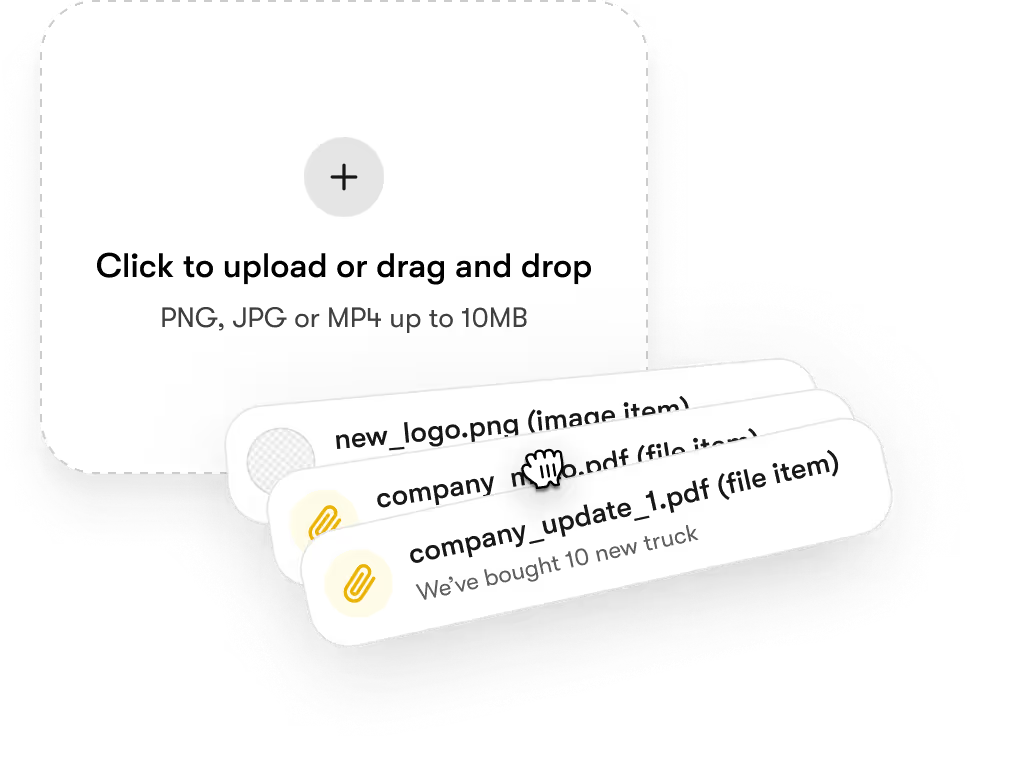
2. Context that compounds
As you approve emails and review results, Brain AI connects everything, no re-explaining, no resets.

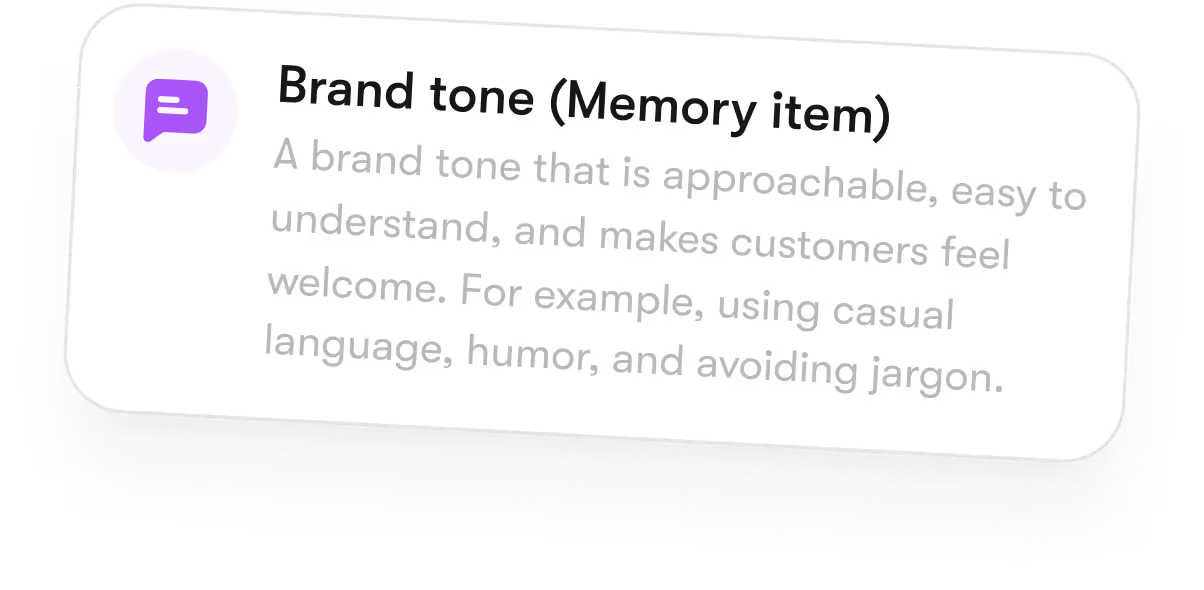
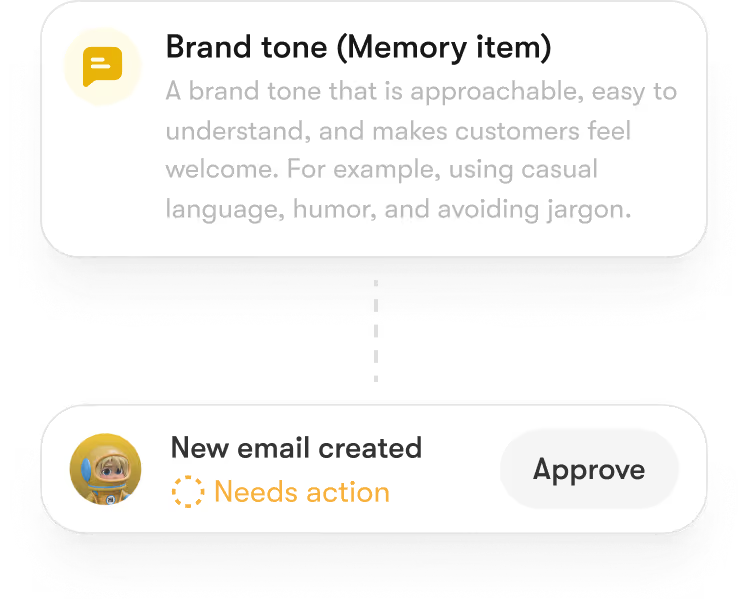
3. One source of truth
Your messaging, campaigns, and references live in one place, ensuring consistency across every email.

With great powers
comes great privacy.
Encrypted by design
From your first login to the last addition in your business knowledge vault, every interaction is encrypted in transit and at rest. This means that neither Sintra nor any third party can access your files or analytics.
Full Data Ownership
"Your content, your strategy, your AI - they belong entirely to you. At any time, you can delete your data or export it. We don’t train models on it or resell it, and your Brain AI is built exclusively on your own assets.
GDPR Compliant
We follow the highest standards of data protection under the GDPR framework. Your personal information is collected and stored transparently - with clear rights to access, modify, or delete your data at any time.
Emmie is the most ❤️ effective AI email assistant in the market
Available always, at your command.
Ask and it’s underway - any hour. Emmie drafts, plans, and prepares without hand-holding.
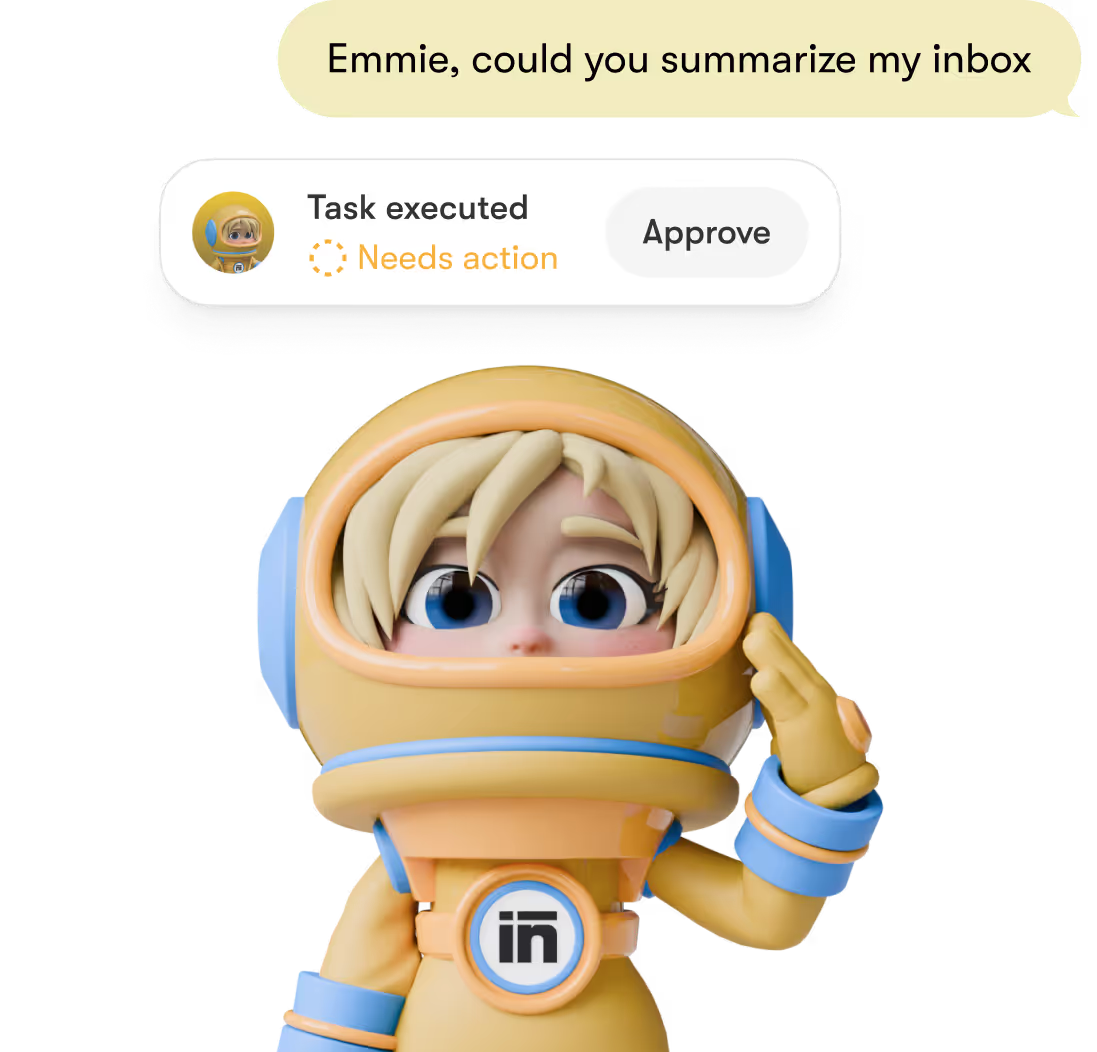
Works with just a few clicks.
Type what you need, approve, done. Edit in-line and schedule across emails in seconds.
Connects seamlessly with your stack.
Plug in Gmail, Outlook, Notion and more. Emmie pulls assets and sends natively, and tracks what comes around.

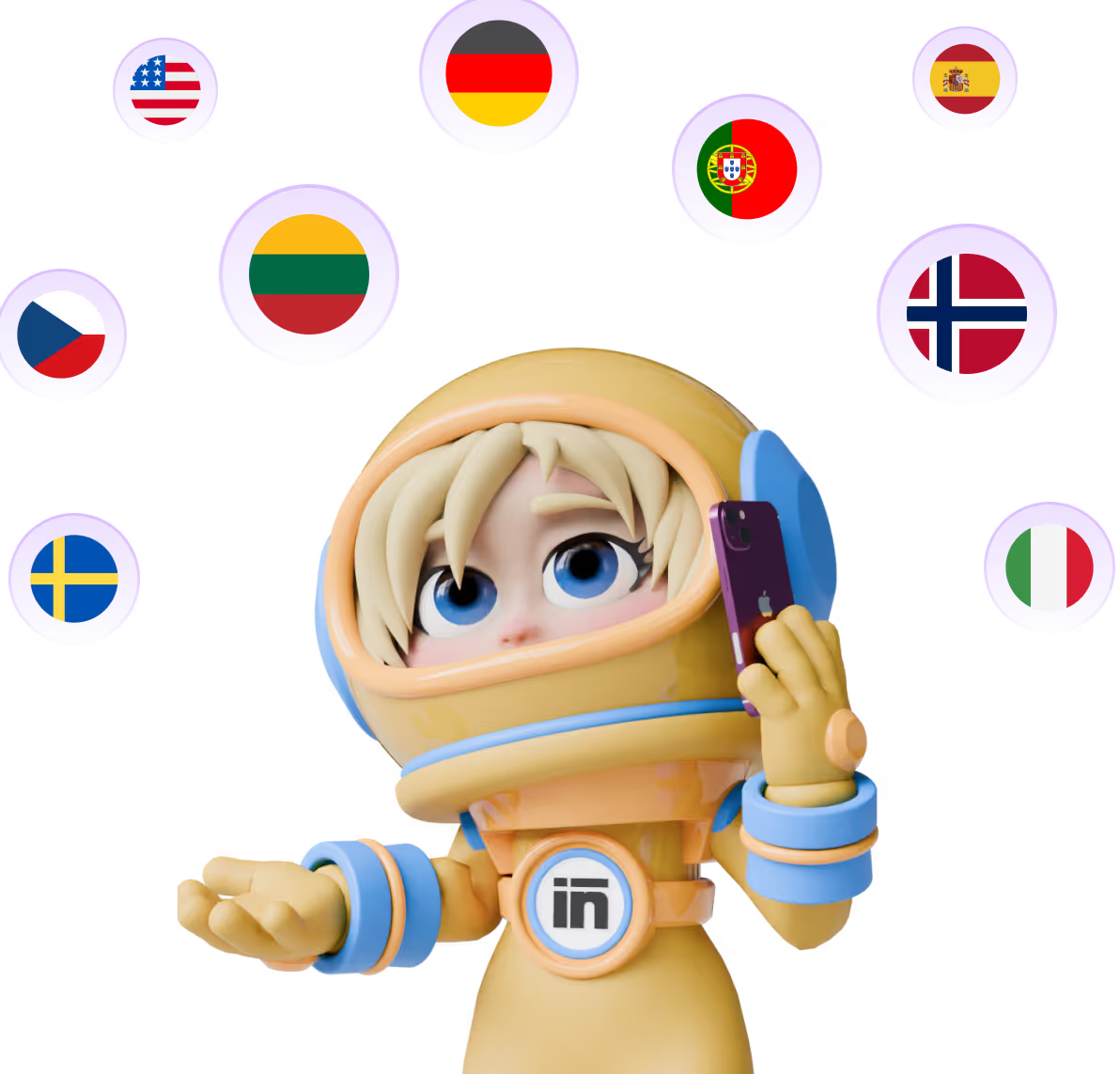
Send campaigns in 150+ languages.
Write once - she adapts tone and idioms per market. Native nuance without the “machine” feel.
Built for real world.
From one-off sends to ongoing campaigns, Emmie fits naturally into how teams actually work.
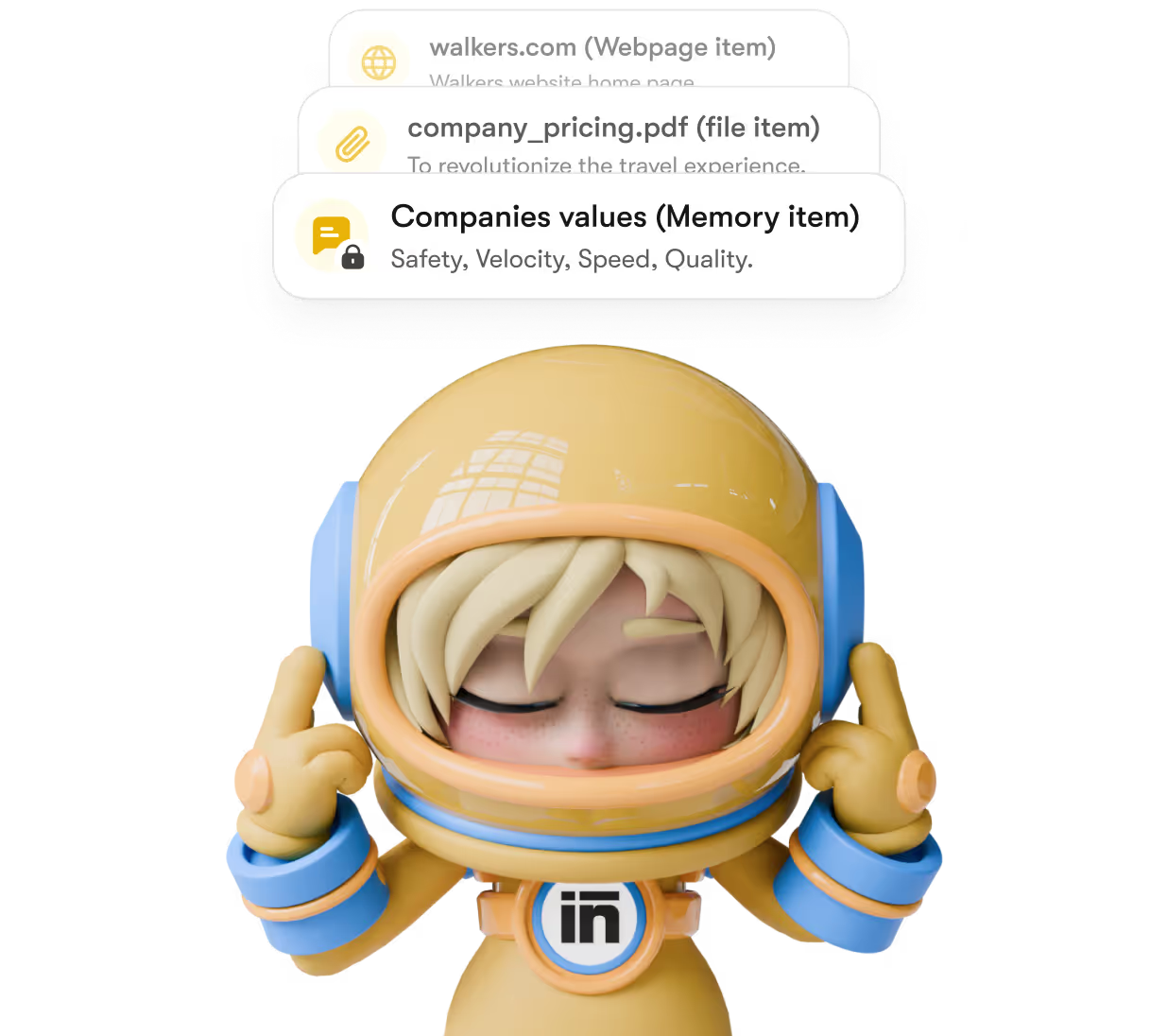
Collaborates when needed.
Emmie can loop in other helpers for research, copy refinement, or analysis behind the scenes.
Compare Emmie to alternatives
Save $400/month. Get Emmie today.



An email marketing AI tool trusted by leaders worldwide.





Hire the best AI email assistant for just $1 per day.
Emmie
Start using the most reliable AI tool for email marketing.

Try now for 14 days - commitment-free.
Not sure our AI email assistant fits your workflow? Test it for 14 days or get a full refund.

Used by more than
50,000+ founders.


I can’t recommend SintraAI enough. It’s like having a personal business coach 24/7, mapping out steps to grow my company and clarifying my priorities. I feel a renewed sense of focus and control every day.
December 29, 2024 • Socrate Concepcion • US

Each AI bot tackles my to-do list, from scheduling tasks to crawling my website for SEO tips. I love how it set up calendar reminders for all my commitments. Sintra.ai is well worth every penny, especially for a busy single-person business.
December 14, 2024 • Jennifer Glenn • US

As an entrepreneur launching a new venture, Sintra.ai has made a real difference. The AI assistants are like personal staff I can rely on. And whenever I needed support, the team was on point. A must-try for any budding business!
December 21, 2024 • Custódio Barreiros • HU

I once had a large team, and although I loved my helpers, they needed constant motivation. With Sintra, there’s no drama, just new ideas that I can simply accept or reject. It’s a huge relief—100% recommended.
December 26, 2024 • Holly Wehde • US

Hiring Sintra was a great decision for my struggling boutique. They handle social media posts, guide my ads, and even offered a solution for double social media pages. Now I can focus on my inventory and customers.
December 17, 2024 • Michele Davis • US

Signed up for Sintra X—it felt overwhelming at first, but once it understood how I think, it turned into a creative powerhouse. Support is top-notch, and the daily integrations impress me.
Dec 10, 2024 • Sami Liftoff • US

I’m not usually one to give top marks, but once I got comfortable with Sintra’s 12 helpers, I was blown away by their efficiency. They churn out so many analytical ideas I have to pause and digest them. It’s sometimes overwhelming, but in a good way.
December 29, 2024 • lars • DK

Sintra integrates with all my favorite tools and these little helpers automate my tasks in a huge way. They actually learn my company’s style day by day. It’s a massive step up from generic AI chats.
December 30, 2024 • Michelangelo • IT

My life is simpler with Sintra. It handles content creation, next steps, brainstorming, and copy. I highly recommend it if you want to free up mental space for what truly matters in your business.
December 28, 2024 • Lionel D'Alvia • US

My “team” in Sintra knocks out tasks like magic, offering fresh ideas for efficiency and better customer outreach. It’s a relief knowing I have AI assistants ready to go around the clock.
December 31, 2024 • Kat Angelica • US

I’ve only been using Sintra for a couple of weeks, but the experience has been great—especially with the social media bot reaching out to me with new ideas. The pull model feels super proactive and makes me more confident in my daily tasks.
December 30, 2024 • Bayan Qandil • US

I challenge anyone to compare other platforms to Sintra.ai and their staff—you won’t find a better customer experience. Everyone is professional, responsive, and genuinely cares about helping. Truly top-notch!
December 28, 2024 • Timothy Montjoy • US

This platform helps me like a full-time employee would. As a startup, I can’t afford extra staff, so Sintra stepped in to handle complex tasks and free me up for big-picture thinking.
December 28, 2024 • Jules Kincaid • US
I’m juggling multiple hats in my business, and these 12 AI “helpers” lighten the load. They even crack jokes and celebrate milestones with me! I saved thousands in consultant fees by letting Sintra handle SEO and content tasks.
December 30, 2024 • Michelle Smith • US

This platform helps me like a full-time employee would. As a startup, I can’t afford extra staff, so Sintra stepped in to handle complex tasks and free me up for big-picture thinking.
December 24, 2024 • Domanic R.H • US


AI email marketing FAQs.
Pricing for all helpers starts at $97/m with Sintra X. Save more with annual billing.
Support available 24/7.
Have more questions? Our team is ready to help at any time of day.

What is an AI email assistant?
An AI email assistant helps plan, create, and manage email marketing. It drafts emails, organizes campaigns, and improves performance so teams stay consistent without manual effort.
Why use AI email assistant?
An AI email assistant removes manual work from email marketing. It helps plan, draft, organize, and prepare campaigns so teams stay consistent, move faster, and avoid inbox and tool overload.
Why Emmie is the best AI for email marketing?
Emmie goes beyond copywriting. It plans campaigns, adapts to brand voice, applies performance insights, and executes reliably. This service stack makes it a versatile tool for email marketing, not just a text generator.
What email marketing tasks can Emmie do?
Emmie plans campaigns and sequences, drafts subject lines and copy, prepares newsletters and launches, tracks performance, summarizes results, and coordinates execution across tools. Imagine Emmie as entry-level executive as well as a top level email marketing strategist, or even manager.
What's the difference between email AI agent and assistant?
An AI assistant works only on demand with limited context. An AI agent for email marketing runs tasks autonomously based on goals and data. Emmie combines both - responding to requests while independently executing email marketing workflows.

There’s even more to love about Sintra AI
Beyond Emmie, 11 more AI helpers support marketing, sales, operations, and analytics - working together to grow your business.
Vizzy
Your AI virtual assistant.
Penn
Your AI Copywriting Expert
Scouty
Your AI Recruitment Manager