How to use AI to write emails?

Table of Contents
AI Email Writing 101: How to Use AI and Write Better Emails?
Professional life demands writing and responding to emails. But let's be honest, it is a real pain. The numbers tell the story - automated emails ended 2023 with a 42.1% open rate and a 1.9% conversion rate, brands sent 23 billion campaign emails, up 33% year-over-year, driving a 17% increase in orders. Getting your emails right has never mattered more.
You spend hours perfecting communication, making sure the message is clear, there are no grammar errors, the tone is apt, and more. Even after all this effort, you are not sure whether the recipient will respond.
Thanks to AI email writing, you no longer have to worry about the nuances. Modern AI email generators do the most for you, from interpreting the prompt, understanding the recipient's expectation, using best email practices, and drafting engaging emails in seconds.
The question is, how to get started. Here is a quick rundown on how to write a compelling email with AI that will get a response.
How Do I Write an Email with AI?
To write an email with AI, write a clear prompt specifying the purpose of the message and the recipients’ details. Next, review the generated draft and look for things that can be personalized. Connect your CRM (storing your customers' details) to AI helpers, so it can tailor the message for individual recipients. Have a final run through the mail, and send it directly.
Why AI Email Writing is a Game Changer?
Drafting emails almost every day in your work? Here’s why you need to switch to AI email writing.
- Time-Saving: Manually writing emails means investing hours in your valuable time. But AI email generators simplify the creation process in seconds. Businesses like Simply Precious Hands are saving five hours weekly by automating their workflow.
- Professional, Error-Free Communication: Awkward typos can be damaging to your credibility. Thankfully, the right AI email generator does not make such mistakes and takes care of structure, grammar, and tone for you.
- Cost-Effective: AI email writing is replacing people originally tasked to draft emails, respond to customers, and check on follow-ups. This means you don’t have to recruit human employees for every single task.
- Consistent Brand Messaging: Sending generic messages in bulk won’t get you results. AI solves this for you. It personalizes each email to match the recipient’s needs, preferences, and previous interactions. Hence, using AI means higher engagement.
- Better Response Rate: There’s a higher chance of people reading your emails. That’s because it optimizes small details like subject lines, body copy, and call-to-action.
Step-by-Step Guide to Write an Email with AI
Ready to upgrade your email game with AI? Here’s a complete step-by-step guide on how to set up, draft, refine, personalize, and send emails using AI helpers. So, dive right in.
Create & Log into Your AI Account
To set up an account on Sintra and write an Email with it, you need an active subscription. If you haven’t purchased the helpers yet, visit the Sintra pricing page to learn more about the plans.
- Once done, visit the Sintra login page and enter your email.
- Click Continue with Email. It will automatically send an OTP to your registered email.
- You can use this OTP to complete the login process.
Fill Your Brain AI for Context
Begin by adding relevant information to the system. Many skip this part, but undermining it can sacrifice accuracy and brand messaging in the generated Emails.
You need to access the Brain AI knowledge base for this step.
For starters, it is the brain of your brand. This mind will store everything, from business info to previous Email campaigns, and supplementary notes. Using this data, it builds on context and writes a crisp message for the receiver - just like how an expert would do.
But the question is, how to train this space? It’s simple.
- Once on the dashboard, visit the Brain AI section.
- Access the All Knowledge tab, click Add, and enter your data.
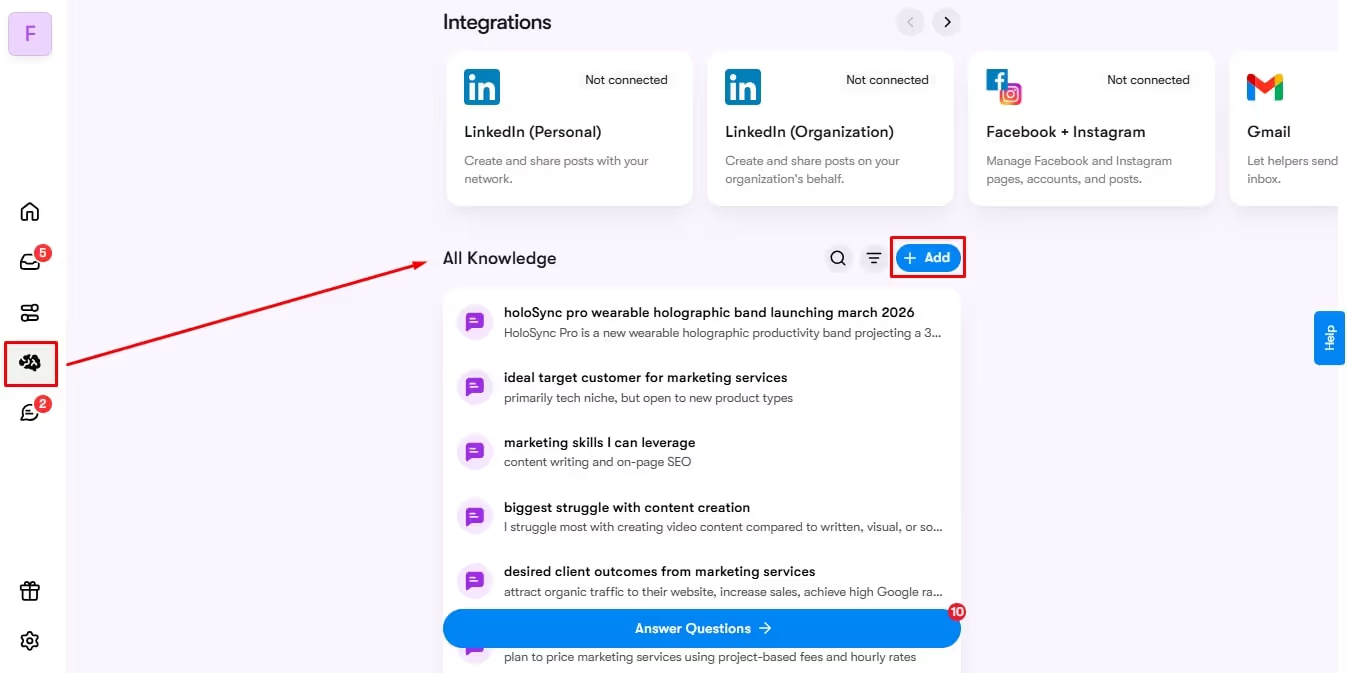
- You can add your company’s mission and vision statement, relevant URLs, lengthy documents, images, videos, and more.
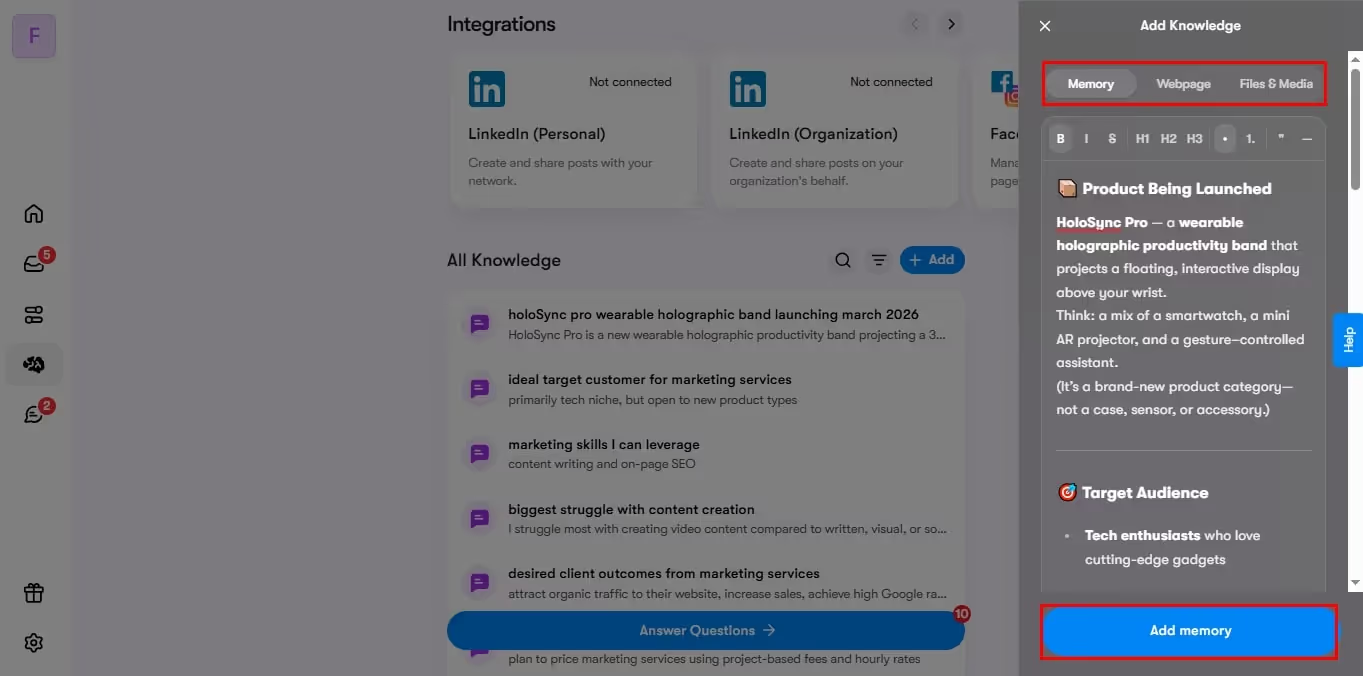
The best thing about Brain AI is that it never stops learning. As you add more data, it asks you relevant questions about your customers, business goals, and future aspirations. Then, the answers help the Sintra helpers produce consistent and on-brand Email drafts.
To answer the survey questions, follow these simple steps.
- From the Brain AI section, visit the Add Knowledge tab and click Answer Questions.
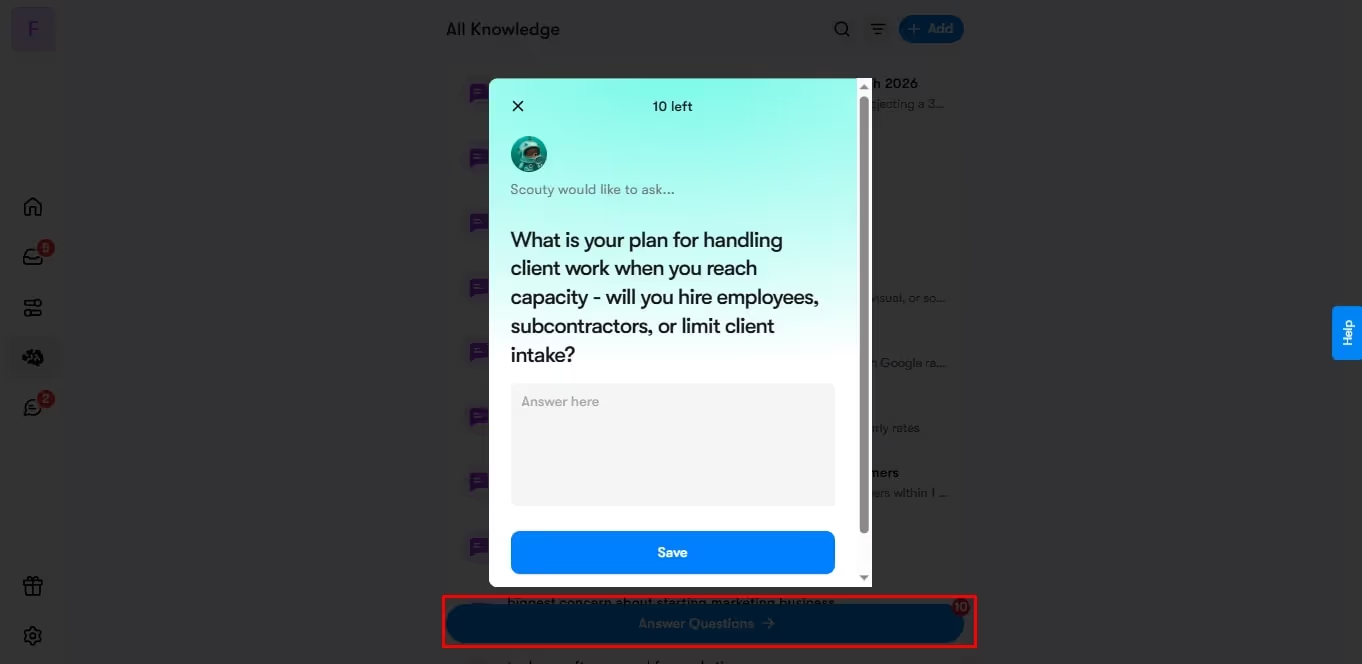
- Take your time and respond to these questions. Make sure to give thorough answers, as it will determine the accuracy of Sintra’s Email marketer.
Connect Your Email Platform
AI email writing is all about using smart work to your benefit. Speaking of it, connecting AI with the CRM and mailing platform is as important as setting up the knowledge base.
So, the next step is to integrate the setup with third-party tools for smooth drafting and scheduling. When connected with your customer’s real-time data, such as purchase history, buying preferences, on-site behavior, etc., AI can deliver smarter, accurate, and relevant emails.
The Profit Coach, a business advisory group, used Sintra’s CRM integrations to personalize greetings, send tailored offers, and adjust tone to the specific customer segment. Plus, connecting Gmail helped the marketing team schedule and post emails with minimal effort.
Thankfully, Sintra’s integrations are quick and easy to get started with. Here is how the process goes.
- Visit the Brain AI section on the dashboard, and locate the Integrations tab from the menu.
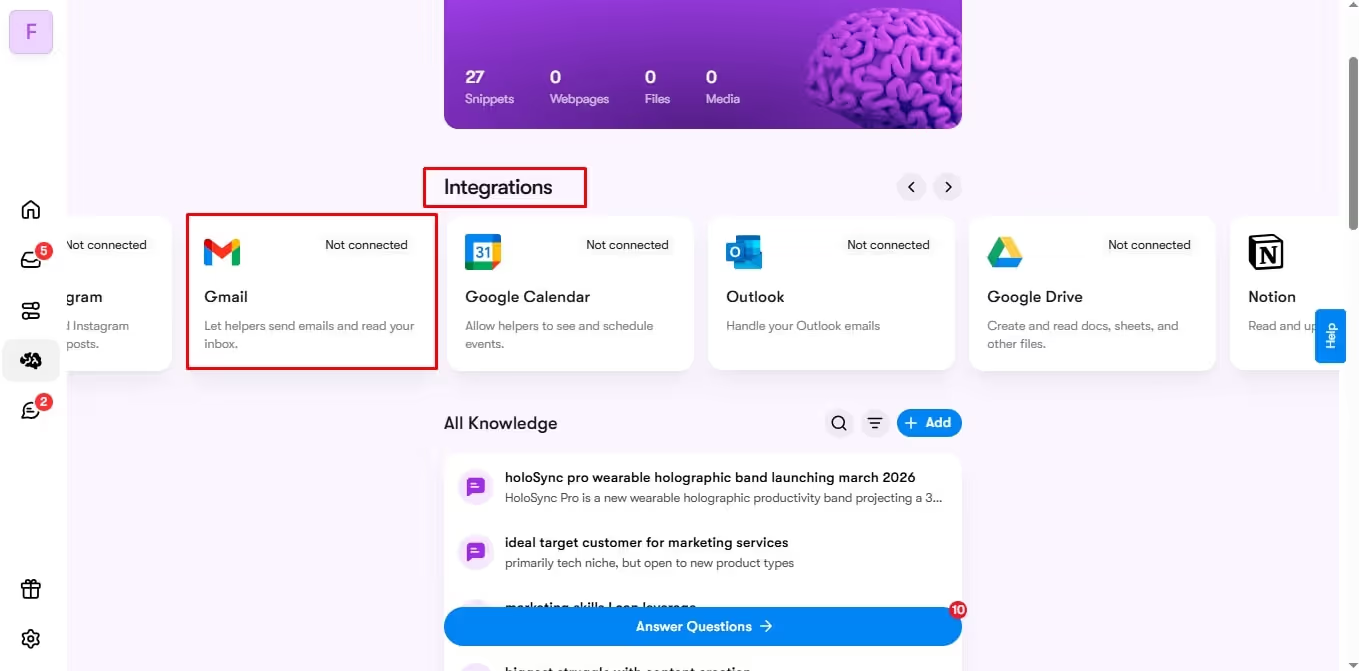
- Select your desired Integration (HubSpot, Salesforce, Gmail, Outlook, etc), and click Connect.
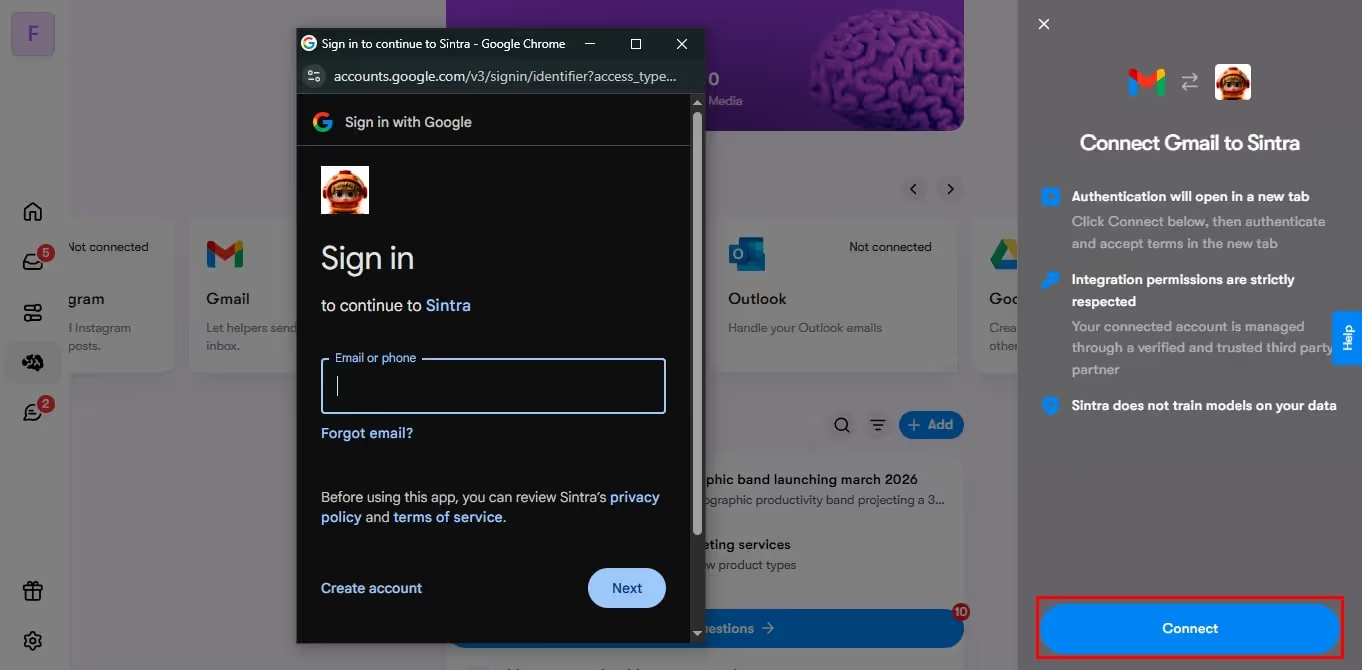
- Enter your login credentials and follow the instructions to complete the process.
Pick the Right Helper for Your Email
Here comes the real deal - AI email writing.
The right email agent must fulfill a few prerequisites, including
- Multilingual capabilities
- Automate complex email campaign planning
- Email responses
- Subject line generation
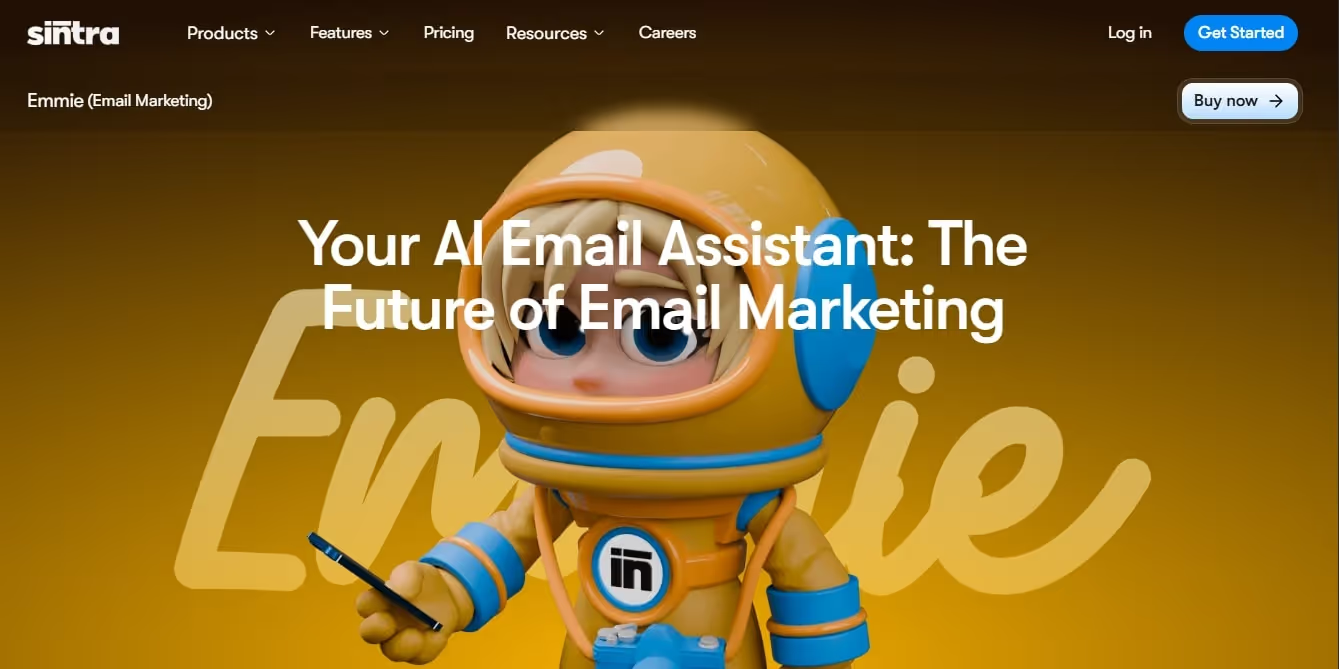
So, it’s ideal that you make a checklist of all desired features and compare tools against it. If you want a convenient, no-code AI helper that can help you with all these functions, try Emmie.
Trained on thousands of best practices, this helper knows how to craft personalized emails, optimize your communication, and design winning responses. Emmie also connects with the Brain AI to understand your business structure, tone, and message, and close deals with minimal guidance.
Start a Chat and Brief the Helper
Let’s start a chat with Emmie and see how it creates an email draft.
- Visit the Home section from the dashboard.
- Select Emmie from the AI Helpers tab. It will take you to the new chat window.
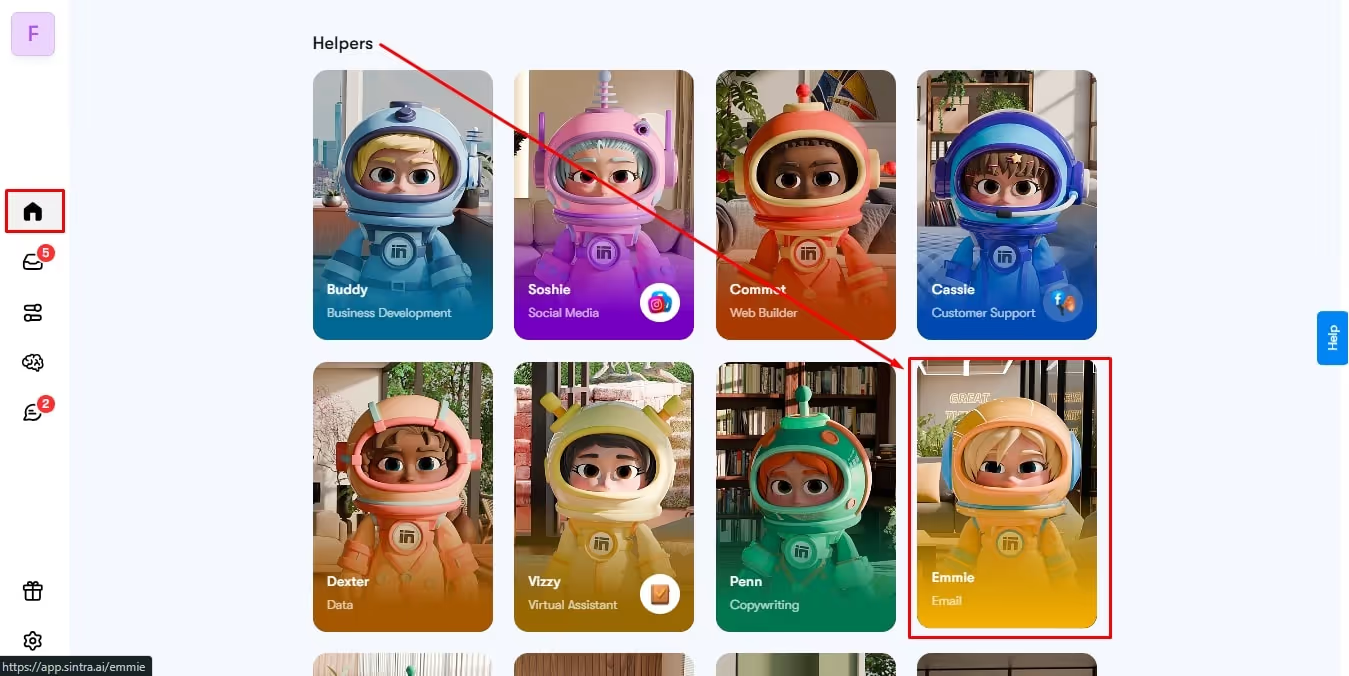
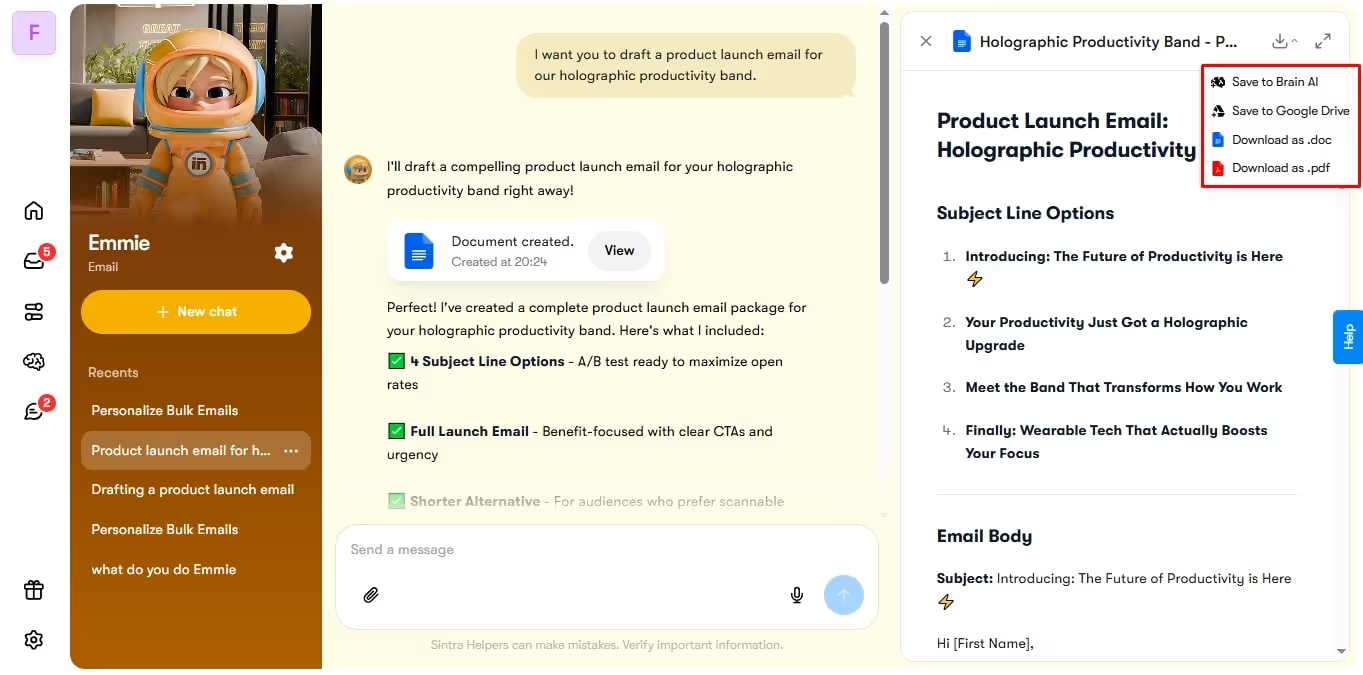
- Enter a prompt to generate an email. For instance, “I want you to draft an email for a product launch for our holographic productivity band.”
- In a few moments, you will see the generated email drafts. Pick and choose different versions of subject lines, email bodies, ending notes, etc.
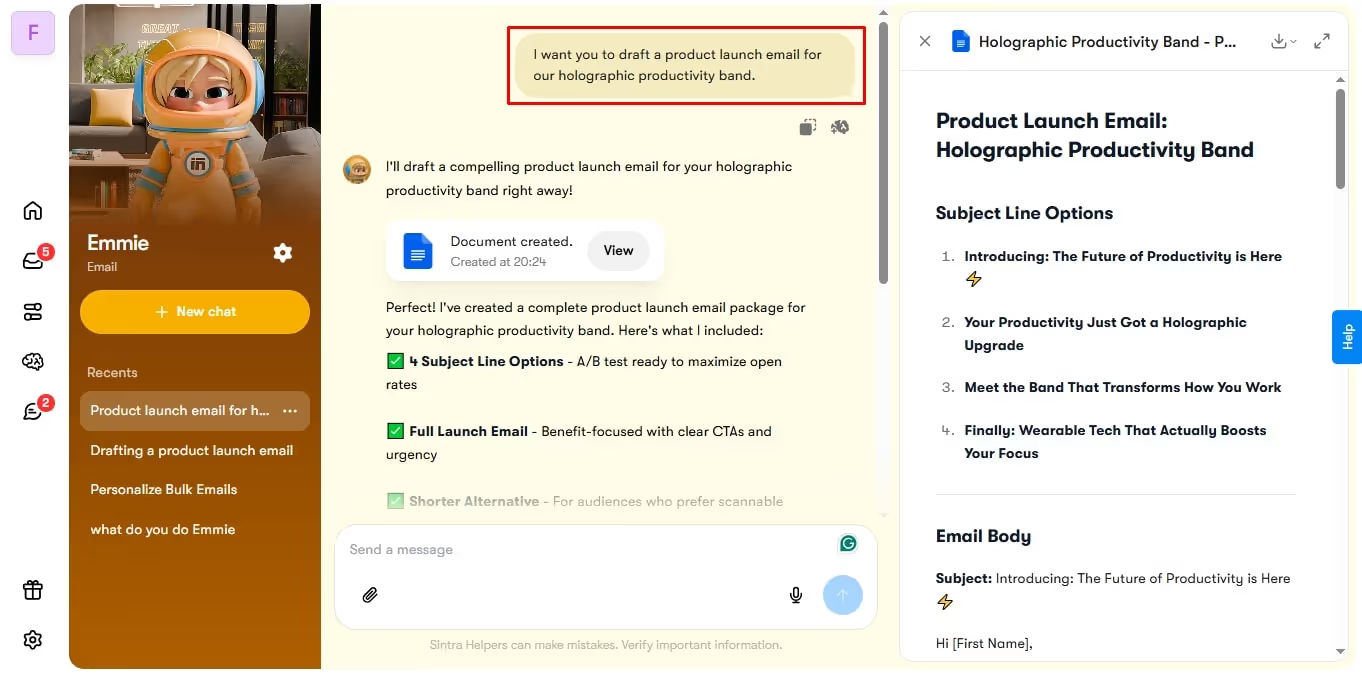
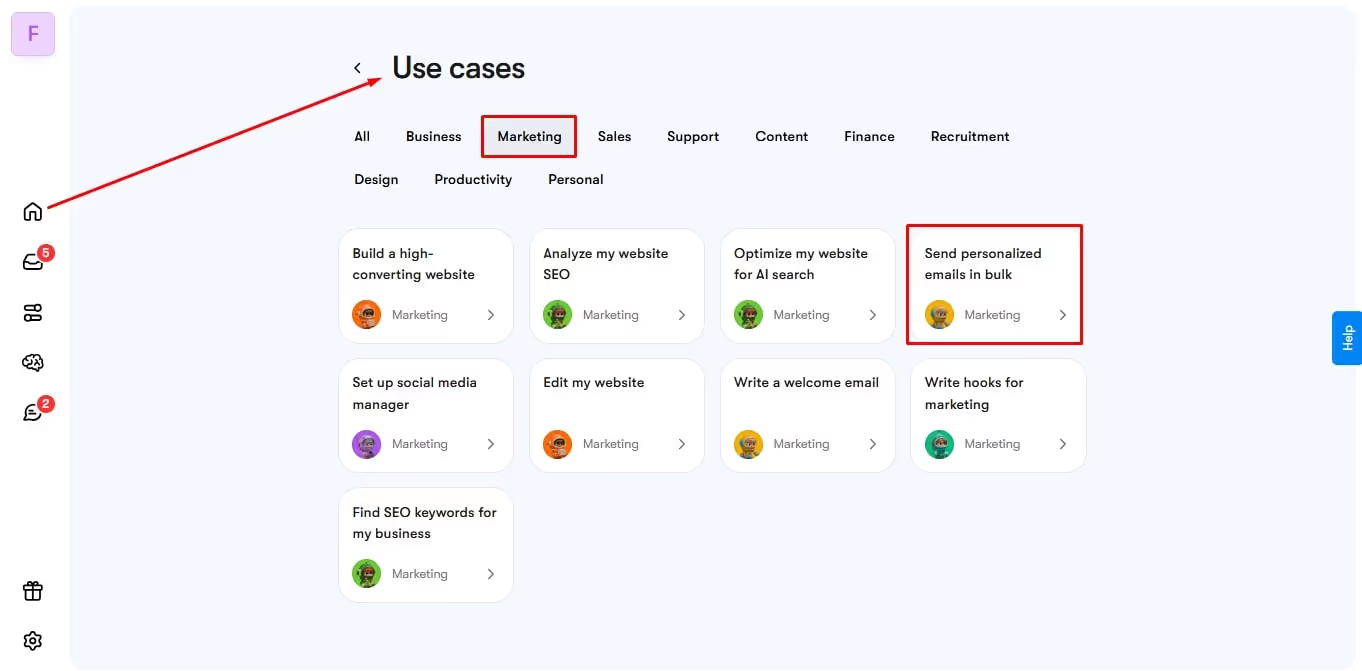
Want to make AI mail drafting even simpler? Try the Emmie Use Cases. It lets you produce emails in bulk. So, let’s see how it is in action.
- Click Use Cases from the Home section, and select Marketing.
- From here, select Send Personalized Emails in Bulk.
- Once the new chat page opens, paste the finalized email content along with the ten recipients and their details, as asked by Emmie.
- It will generate ten different personalized versions of the email.

Review and Refine the Draft
Now is your time to truly intervene. Always remember! Human oversight is crucial, however good your AI email writer is. In this step, you may ask the AI to,
- Suggest alternate subject lines, each limited to 60 characters.
- Recommend various messages with different tones and styles.
- Provide specific details about your recipients.
- Shorten some sentences to promote readability.
- Tweak the content to improve the structure and clarity of the message
Once satisfied, it’s time to run through the final checks. Take your time and pay attention to even the slightest details, such as attachments, product specifications, salutations, call to action, etc.
Send the Email
Everything looks good? You can proceed to move your draft to the sending queue. For this, go back to Emmie and do the following.
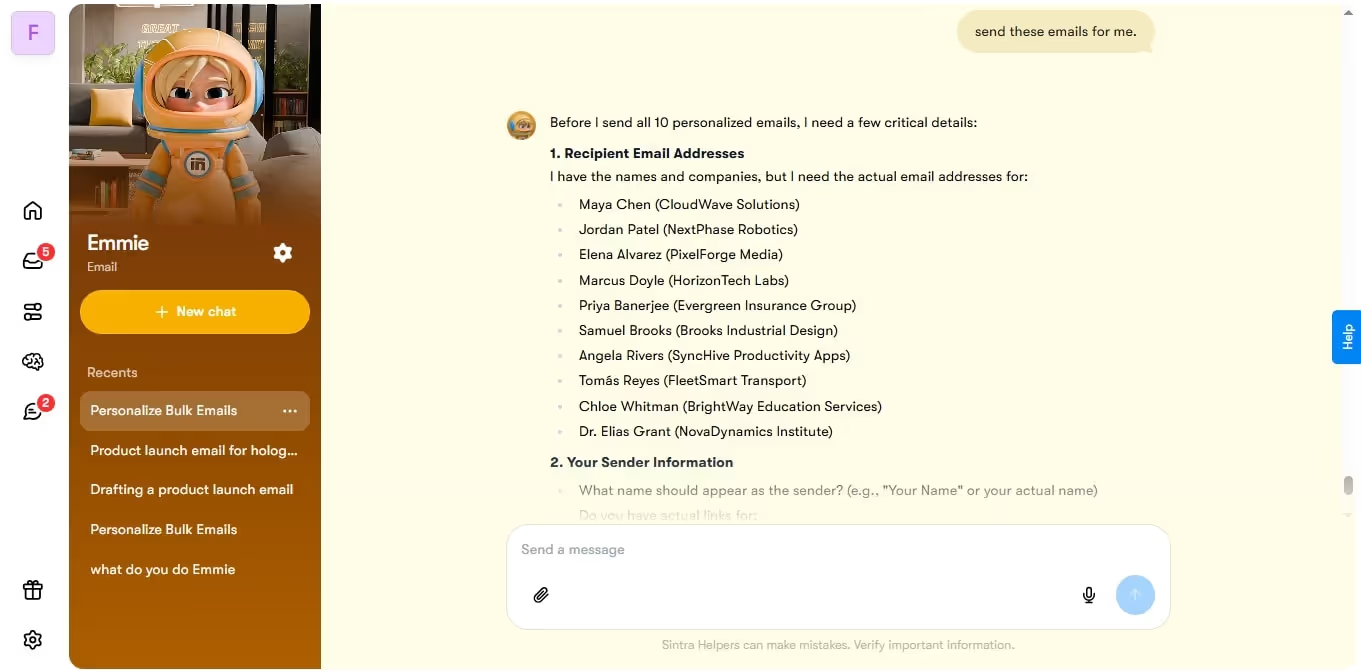
- Prompt Emmie to send the following email to the decided people.
- It will ask you for their email addresses. Provide them and follow the instruction prompts to finalize the sending. And, there you have it - all done and dusted.
Save What Works as a Reusable Pattern
Let’s not stop here and look beyond traditional practices. Monitor this email for a few days and see the results. Once sure of the success, turn this message into a template you can easily reuse. For this,
- Go back to Emmie’s chat, where it generated an email.
- Click the Download icon from the top-right corner of the generated mail.
- Save it to Brain AI, Google Drive, or as a hard-copy document.
So, next time, you can always prompt the AI agent to write a similar email to last week’s follow-up, for a quick and effortless process.
It does not stop here. You can also use Sintra’s intelligent virtual assistant Vizzy for a smarter approach to emails. It sends daily reports and summaries of your business operations for your team to stay informed about recent tasks without manually consulting the calendar every time.
Top Tips for Writing Better Emails with AI
AI email writing is not as straightforward as saying AI, help me write an email. It can be anything but that, especially if you don’t know how to approach it correctly. Here are a few actionable tips you can employ to get the best results.
Always Review for Error-Checking
Even with the best AI email writers, the final review is crucial to keep the outcome error-free. Look for typing mistakes, confusing words, missing items, and more.
A good approach is to read it out loud, so you know if it lacks anything. You can also use a checklist to ensure all the key points are present in the AI-generated draft.
Craft Effective Prompts
AI runs on prompts. A well-written, effective prompt would provide accurate and relevant email drafts. Don’t have any idea how to write prompts? Try using an AI prompt creator.
Start by telling who the email is for and what you want to do with it. For example, if the email is about welcoming a new client or making an announcement for a product launch. Continue the conversation like you would with a colleague. Use simple words and talk normally.
Context is Crucial
Personalization is key in email communication. And, the only way to incorporate it is through context. With valuable insights into your business, its goals, customer demographics, and sales, AI for sales emails enables agents to tailor a generic message to each individual.
For instance, you can employ AI to segment the audience as per their demographics, engagement, and other filters. For example, it can send special deals to customers who left things in their cart. You can also command AI to personalize the subject line to grab attention.
Avoid Over-Reliance on AI
AI is meant to help you write professional emails faster. But you must not use it for everything on its own. Sometimes, it’s natural for AI to hallucinate and make mistakes, especially with challenging topics. Plus, it comes at a cost of missed opportunities for personalization. Learn more about how to effectively use AI in email marketing without over-automating routine tasks.
When Should You Use AI to Write Emails (And When Not to)?
By now, you must’ve realized that not every email should be automated. It’s always a wise option to evaluate when you should and shouldn’t use AI in email writing.
When You Should Use AI?
- Repetitive emails, such as reminders, outreach messages, status updates, etc.
- Don’t have ample time to write from scratch? AI can produce a quick first draft, and all you have to do is modify and personalize.
- Rewrite existing emails for better clarity and structure. You can also make messages more professional for corporate purposes.
- Want summarized information on your fingertips? Employ AI agents like Vizzy to send you special notes, meeting reports, and more, and always stay updated.
When You Should Not Use AI?
- It’s not ideal to use AI in high-stakes situations. It can be a legal follow-up or HR issue with an employee. Remember! Anything that requires emotional judgment should not be automated.
- Any message that requires deep context should not be automated. Despite intelligent algorithms, AI is prone to making mistakes about things like political nuances, a company’s internal dynamics, and more.
- Imagine a situation. If any error in this situation creates a risk for your business, it shouldn’t be automated. It can be finances, policy papers, compliance with industry standards, and more.
Why choose AI “Employees” for Emails?
General AI is built to help you with routine tasks, but it lacks clarity, vision, and focus. All these things come with role-based AI helpers. Each of these helpers is designed to perform a specialized task, like email writing, personal coaching, virtual assisting, and more.
Imagine you’ve written a prompt for email writing. A generic AI would react to the prompt alone. However, a specialized agent would connect to your knowledge base, understand context, comprehend the purpose of the email, and then work on it.
Simply put, AI helpers are better equipped to help you at each stage of email writing, from writing the right prompt to feeding the context, producing bulk messages, and scheduling them. Learn more about Sintra’s AI team of helpers and their capabilities.
Start Writing Emails with AI Today!
That’s it. By now, you must have a clear idea of how AI email writing works. However, if you are still confused about where to begin? Try Sintra.ai helpers. All these helpers are tasked to help you at each stage of email writing. Plus, they directly access your business data to produce relevant and personalized drafts.
So, get started today and see how it goes.
AI Email Writing FAQs
How can I use AI to write an email without it sounding robotic?
To write an email using AI without it sounding robotic, focus on the prompt. A bad prompt means generic mail with long sentences. So, when writing a prompt, provide recipients' details and have a follow-up conversation with the AI email generator.
What should I include in my prompt when I ask AI to generate an email?
When you ask AI to generate an email, your prompt should include the purpose of the email, the recipient’s details, specifications like the call-to-action or salutations, and the tone. Be clear about things like the length, format, and personalization elements.
Is it safe to write an email AI that includes customer or company data?
Using AI to draft emails is only safe when you follow the protocol. AI trains on your business data and may use it to learn more about your goals. Hence, as a business, you must follow the industry’s privacy and data-protection laws to stay safe.
How do I keep my own tone and voice when I write an email using AI?
When you write an email with AI, use simple language and a friendly tone. Be clear about what you want and the purpose of the email. Remember! The more context you provide, the more relevant and personalized your message will be.
When should I avoid using AI to draft emails and type them manually instead?
You should avoid using AI to generate emails in high-stakes situations (involving finances, policy-related matters, etc) where your business-sensitive data is at risk. Similarly, areas requiring deep context should also not be left to AI.
Can AI help me write email replies faster when my inbox is full?
Of course, AI email generators are designed for high-stress situations. These AI helpers connect to your business data and automate reply suggestions. You can quickly pick and choose between these replies, saving time and effort.
How do I train AI over time so it writes better emails for my business?
AI learns from user interactions and data. So, to train your AI better, use consistent prompts, give tone guidelines, and save templates. You can also connect your AI email generator with business data, so it understands your business and adapts accordingly.
Do I still need to proofread if AI helps to write an email for me?
Yes, definitely. Always remember, human oversight does not compare with AI content. However good your AI email writer is, the final say comes from the human rep. So, it’s crucial to proofread for missing data, hallucinations, or personalization errors.
Related articles

.avif)