How To Set Up AI Email Triage in 8 Steps

Table of Contents

Quick Answer: What Is AI Email Triage and Why It Matters
Email triage is the process of sorting incoming emails by urgency, topic, and required action so the right messages get handled first. AI-powered triage uses machine learning and natural language processing (NLP) to interpret the intent, sentiment, and urgency of incoming messages.
Here is why it matters for daily operations:
- Most inboxes receive more messages than any person can reasonably sort without losing track of something important
- Every minute spent deciding where an email belongs is a minute not spent actually responding to it
- AI email triage can reduce average response times by up to 40%
- Manual sorting introduces human error in routing, especially under high volume or time pressure
- Without a system, priority emails sit at the same level as newsletters until someone notices them too late
- AI handles classification consistently, whether it is processing 10 emails or 500, with no drop in accuracy
Real example: a small support team gets 200 emails a day. Without AI, an agent reads each one, decides if it's a billing issue, a bug report, or a refund request, and forwards it.
With AI triage, the email is tagged, prioritized, and routed in seconds, so the agent only opens the messages they need to act on. Pairing this with AI employees lets the system also draft replies and complete follow-up tasks.
Most professionals start their mornings already behind, digging through newsletters and internal noise just to find the one message that actually needed a reply two hours ago. The volume is not a personal failure; it is just more than any inbox was designed to handle without some help.
AI email triage works because the AI team treats your inbox like a system rather than a list you chip away at manually. Get the setup right, and the sorting, flagging, and prioritizing happen before you even open your mail, which means your attention goes to what actually moves things forward.
In this article, we will explain and set up AI email triage to help you manage your cluttered inbox. Stick to the end.
Step-by-Step Guide to Setting Up AI Email Triage
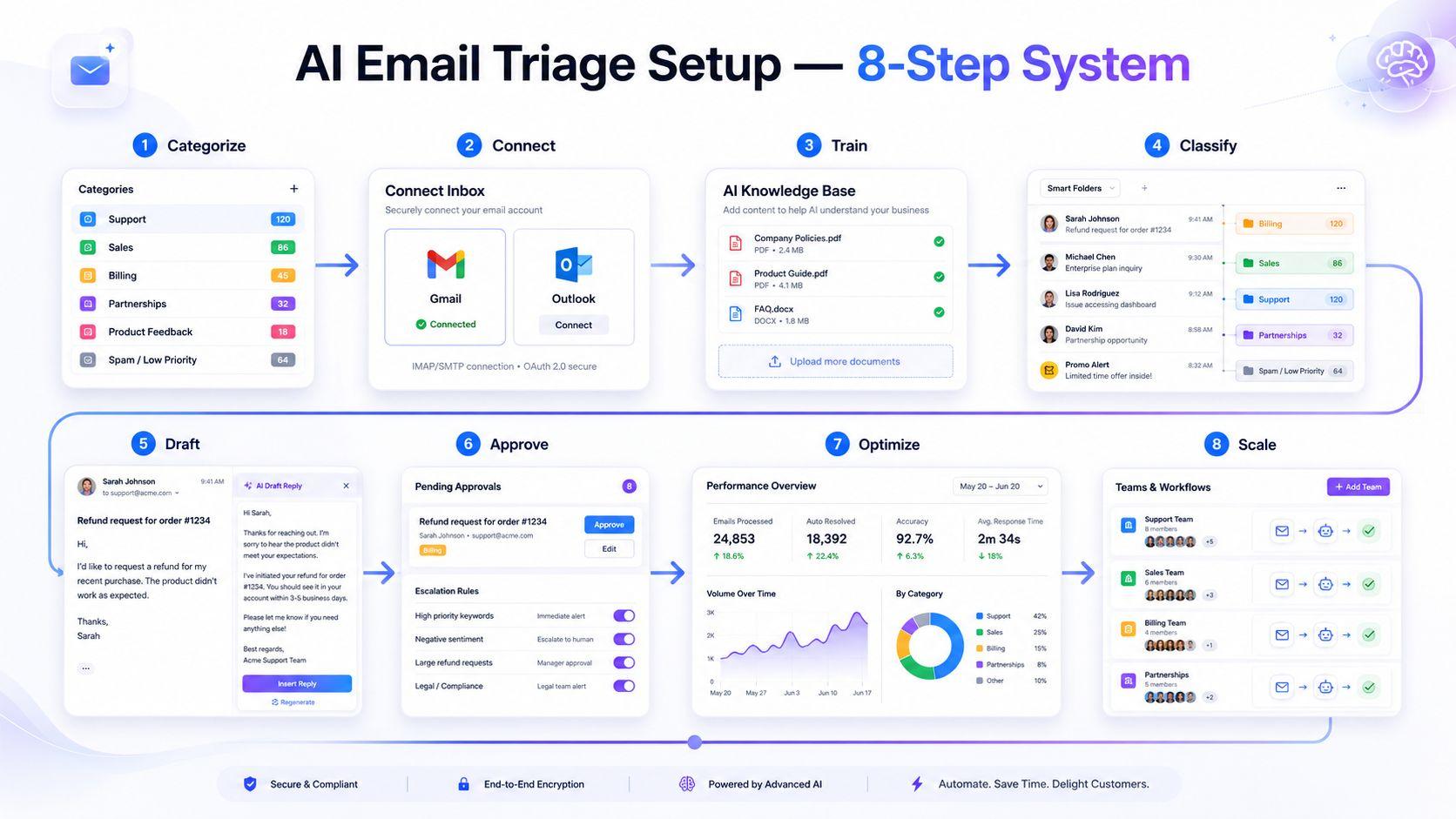
Each step below builds on the last. Skipping ahead, like automating replies before training the AI, is where most setups go wrong. Follow them to get a working, scalable system.
Step 1 – Define Your Email Categories and Priority Rules
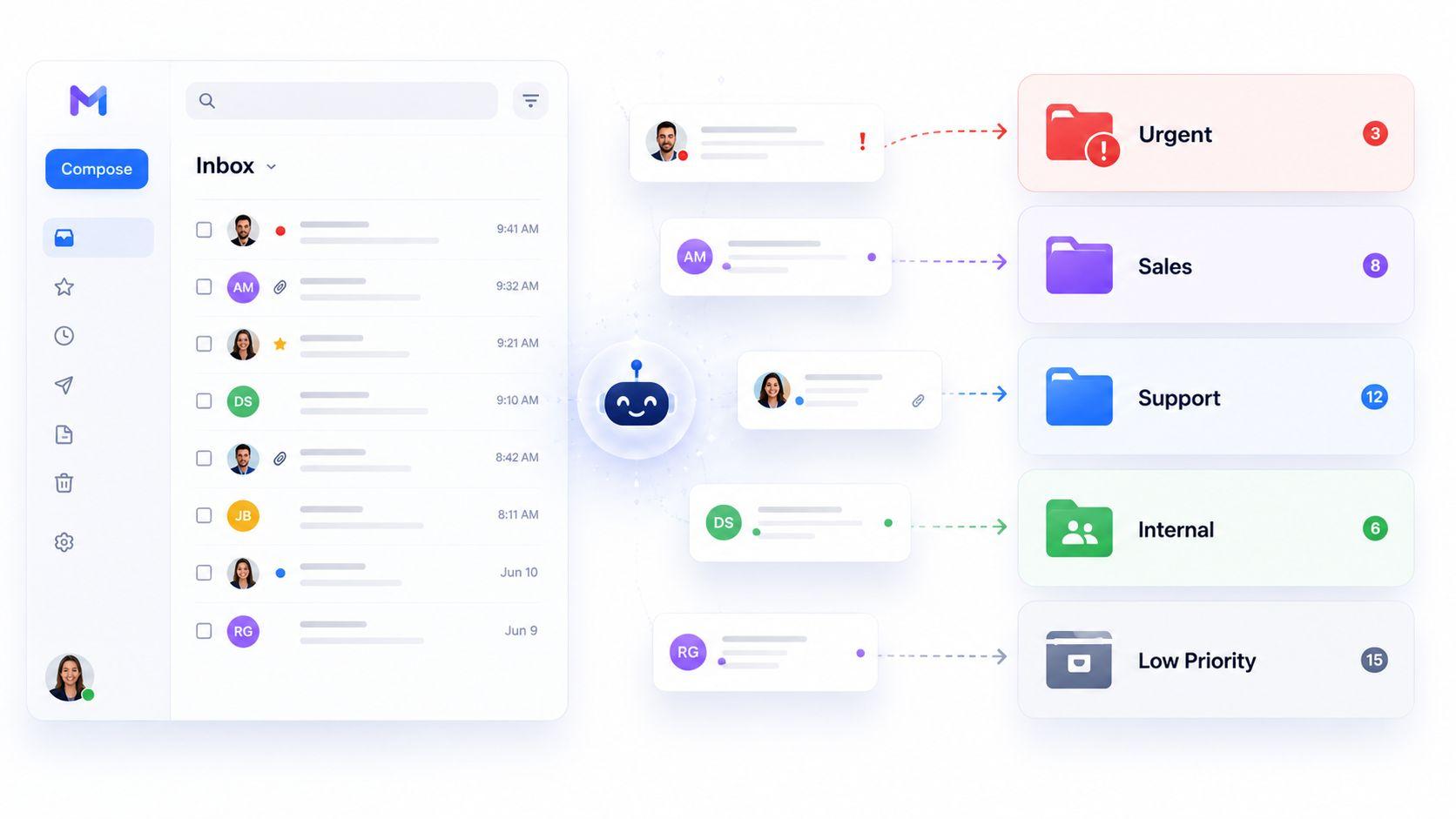
Before any tool can sort your inbox, you need to decide what the buckets are. Without clear categories, the AI guesses, and guesses lead to mistakes.
Start with broad groups, then narrow down:
- Urgent: outages, escalations, VIP clients
- Sales: new leads, demo requests, pricing questions
- Support: bugs, refund requests, how-to questions
- Internal: team updates, HR, scheduling
- Low priority: newsletters, promotional emails, notifications
Real example: a SaaS support inbox might split "Support" into three sub-tags: "Billing", "Technical Bug", and "Account Access". Each tag has a priority score, so a payment failure gets flagged faster than a password reset.
Using a consistent labeling system allows AI to sort messages with greater accuracy. Stick to the same naming pattern across all rules so the model does not get confused by overlapping definitions.
Step 2 – Connect Your Inbox to an AI System
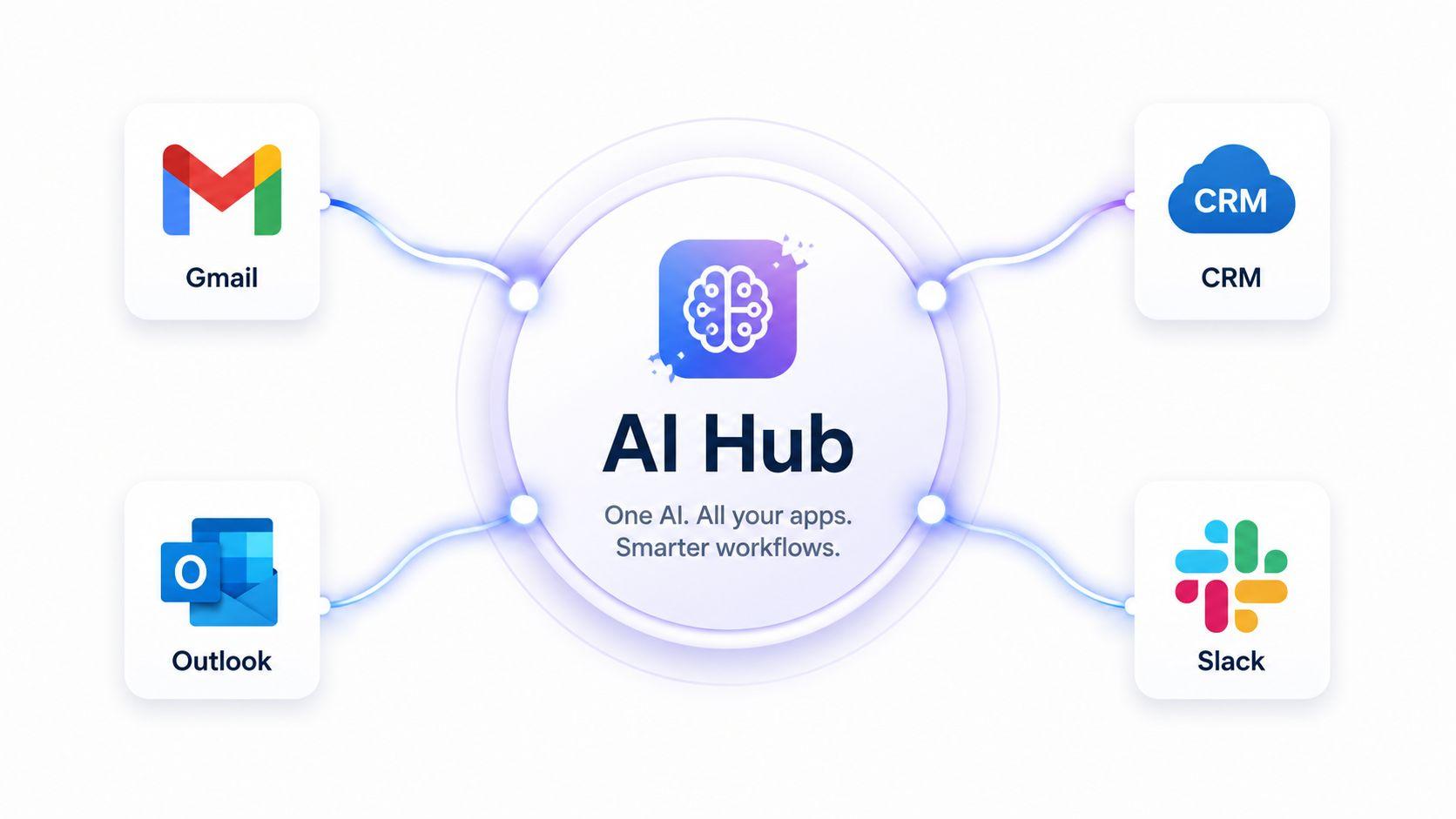
Once your categories are set, link your email account to the AI tool. This is a technical step, but most platforms handle it in a few clicks.
What the setup involves:
- Sign in with your email provider (Gmail, Outlook, or another IMAP account)
- Grant read and write permissions so the AI can label, archive, and reply
- Enable real-time syncing so new emails are processed as they arrive
- Connect supporting tools like your CRM, helpdesk, or Slack
Integration with existing systems is crucial for AI email triage tools to eliminate data silos and workflow disruptions, ensuring a smooth flow of data between platforms. If your CRM does not receive tagged emails, your sales team ends up doing double the work. Check for available AI integrations before you commit to a tool, so you know everything will talk to one another.
When done right, an email landing in your inbox is read, classified, and routed within seconds, no manual click needed.
Step 3 – Train Your AI with Business Context
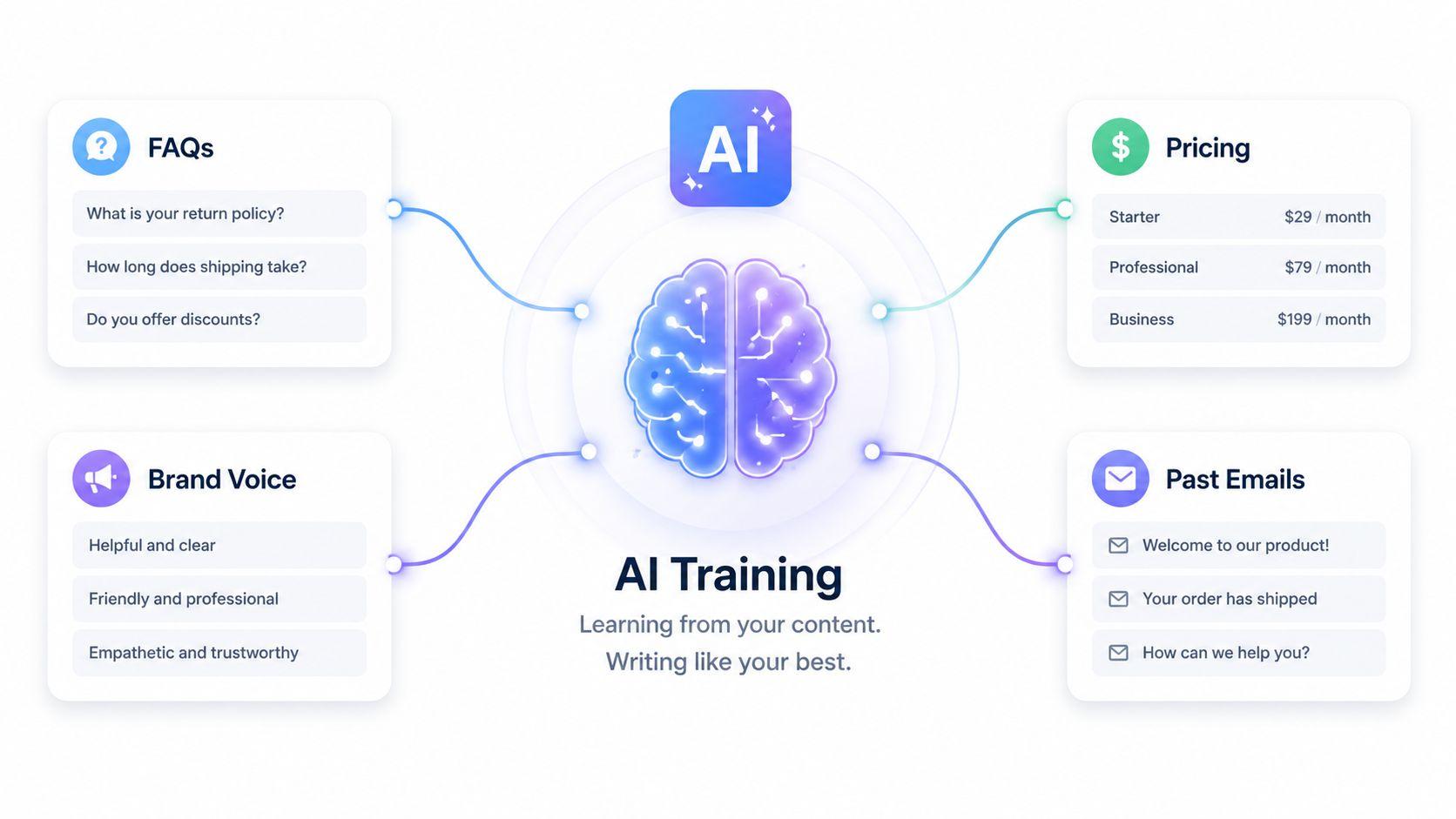
A generic AI will give generic results. To make it useful, feed it information about how your business actually communicates.
What to add during training:
- Brand voice samples: 10-20 past emails that show your tone
- Customer FAQs: common questions and your standard answers
- Product or service details: pricing, features, policies
- Past email threads: examples of how you handled refunds, escalations, or sales follow-ups
- Internal rules: which emails go to which team member
Training AI models on historical data improves accuracy in categorizing and prioritizing emails. The more relevant context you provide, the fewer mistakes you'll need to correct later.
Tools with a centralized knowledge base, like Brain AI, store this information once, so every AI workflow pulls from the same source. That keeps replies consistent across support, sales, and operations.
Step 4 – Automate Email Classification and Tagging
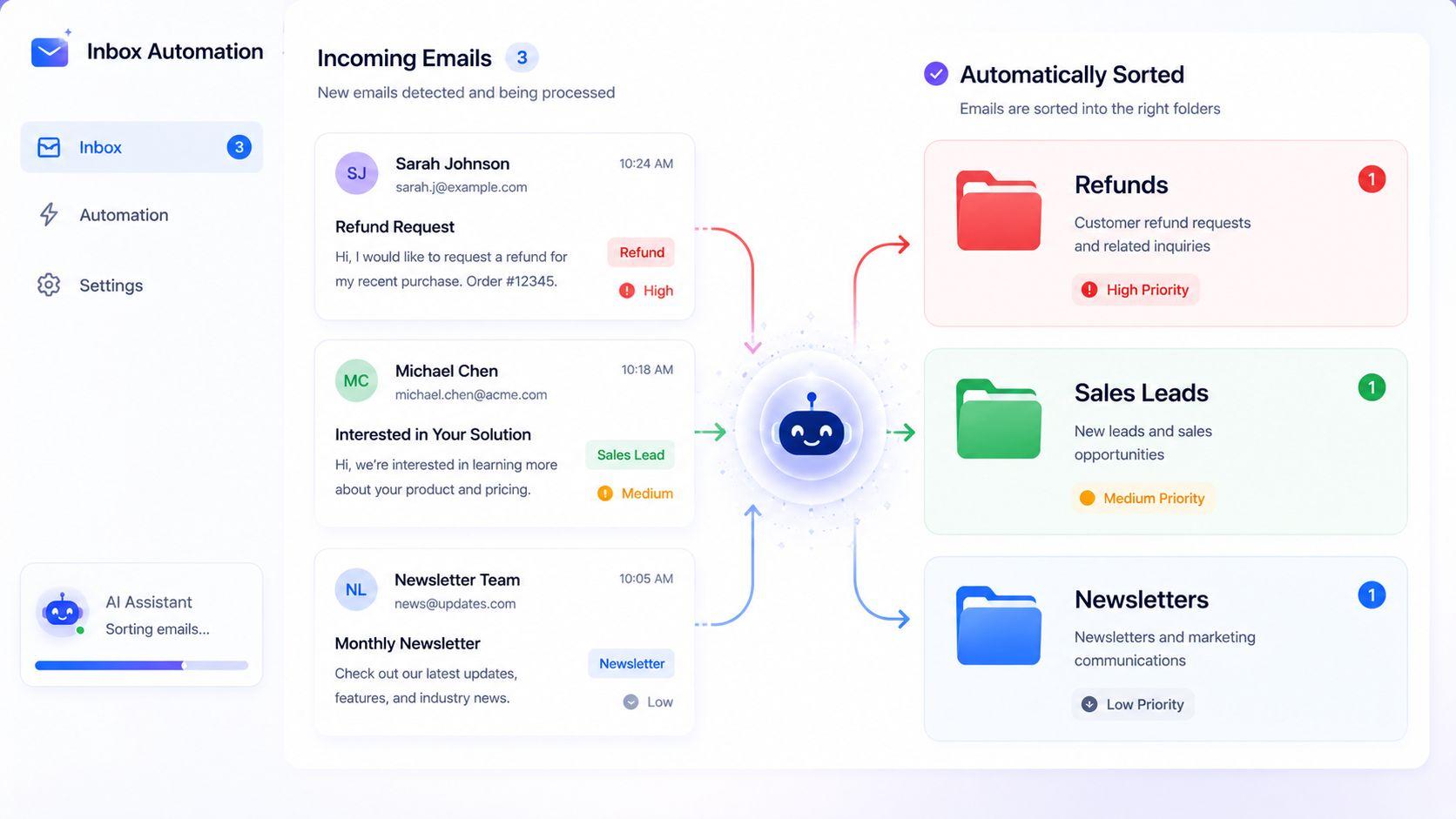
With training complete, the AI reads every incoming email, determines its subject, and automatically applies the correct tag and priority level.
Here's what that looks like in practice:
- A message that says "I want a refund for order #1234" gets tagged Support → Refund → High priority
- A message that says "Can you send pricing for 50 users?" gets tagged Sales → Enterprise lead → High priority
- A message from a newsletter list gets tagged Low priority → Archive
AI systems can manage high-volume inboxes by automatically sorting emails into predefined categories such as 'Urgent' and 'Newsletters'.
AI assigns priority levels to emails based on linguistic cues and historical patterns to ensure critical messages are addressed promptly.
The speed gain here is real. AI-powered email triage can process 3-5 times more requests than manual methods while maintaining higher accuracy, ensuring that critical issues receive immediate attention and nothing falls through the cracks.
Step 5 – Set Up AI-Generated Draft Responses
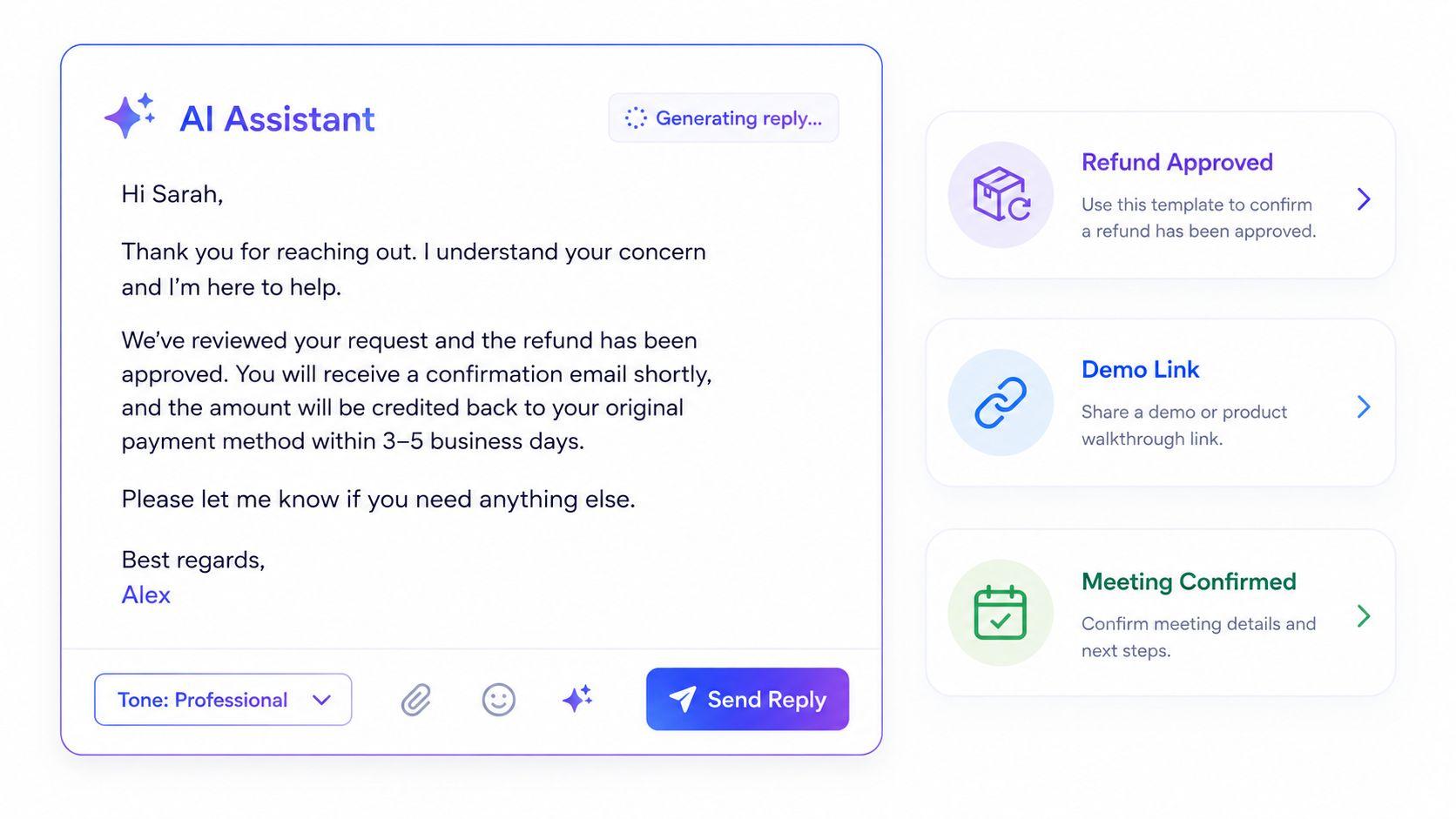
After classification, the AI can draft replies for common scenarios. You review and send, or let it send automatically for low-risk cases.
Examples of useful draft types:
- Support replies: "We've received your refund request and processed it. Funds will appear in 3-5 business days."
- Lead follow-ups: "Thanks for your interest. Here's a link to book a demo."
- Meeting confirmations: "Confirmed for Thursday at 2 pm. Calendar invite attached."
- Out-of-scope redirects: "This sounds like a billing question. I'm forwarding you to our finance team."
AI reduces the time spent on manual sorting and drafting emails by 50%-60%, potentially saving users 4–7 hours per week. That time goes back into work that actually moves the business forward.
Because the AI draws on your trained brand voice, replies stay consistent with how your team typically writes.
Step 6 – Create Approval and Escalation Workflows
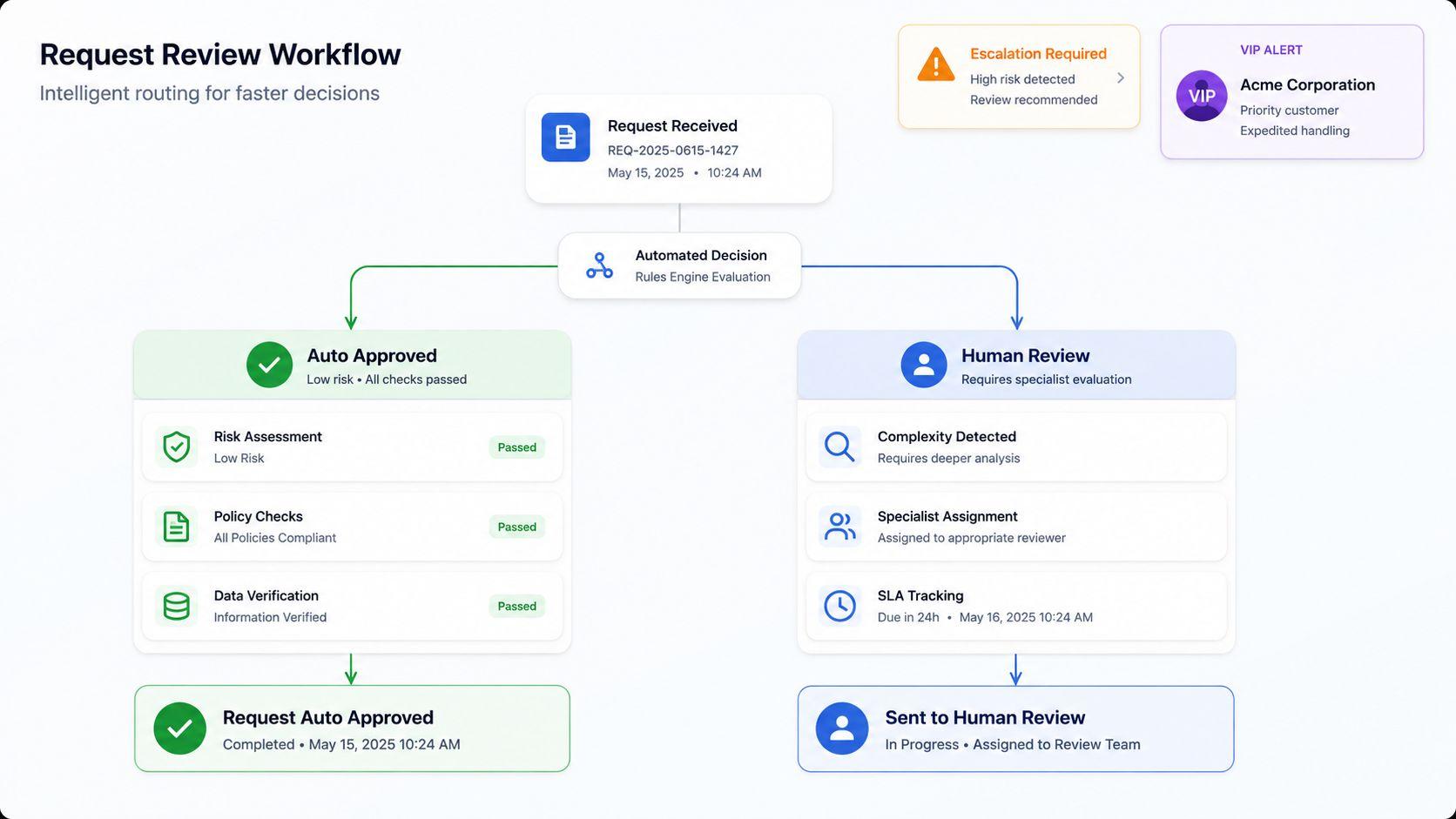
Not every email should get an automatic reply. Some need a human to look first. Approval rules decide what gets sent automatically and what waits for review.
Build rules around risk and value:
- Auto-send: routine confirmations, FAQ answers, scheduling
- Draft for review: refund approvals over a set amount, contract questions, and complaints
- Escalate immediately: legal threats, churn risks, VIP clients, negative sentiment
Real example: a customer emails, "I'm canceling unless you fix this today." The AI detects negative sentiment and the word "canceling," skips the auto-reply, and routes the message straight to a senior support rep with a flag.
AI email triage systems can automatically categorize incoming emails, assess urgency, and route them to the appropriate team members based on their expertise and workload. This keeps high-stakes messages from getting a flat, automated response.
Step 7 – Monitor Performance and Optimize Rules
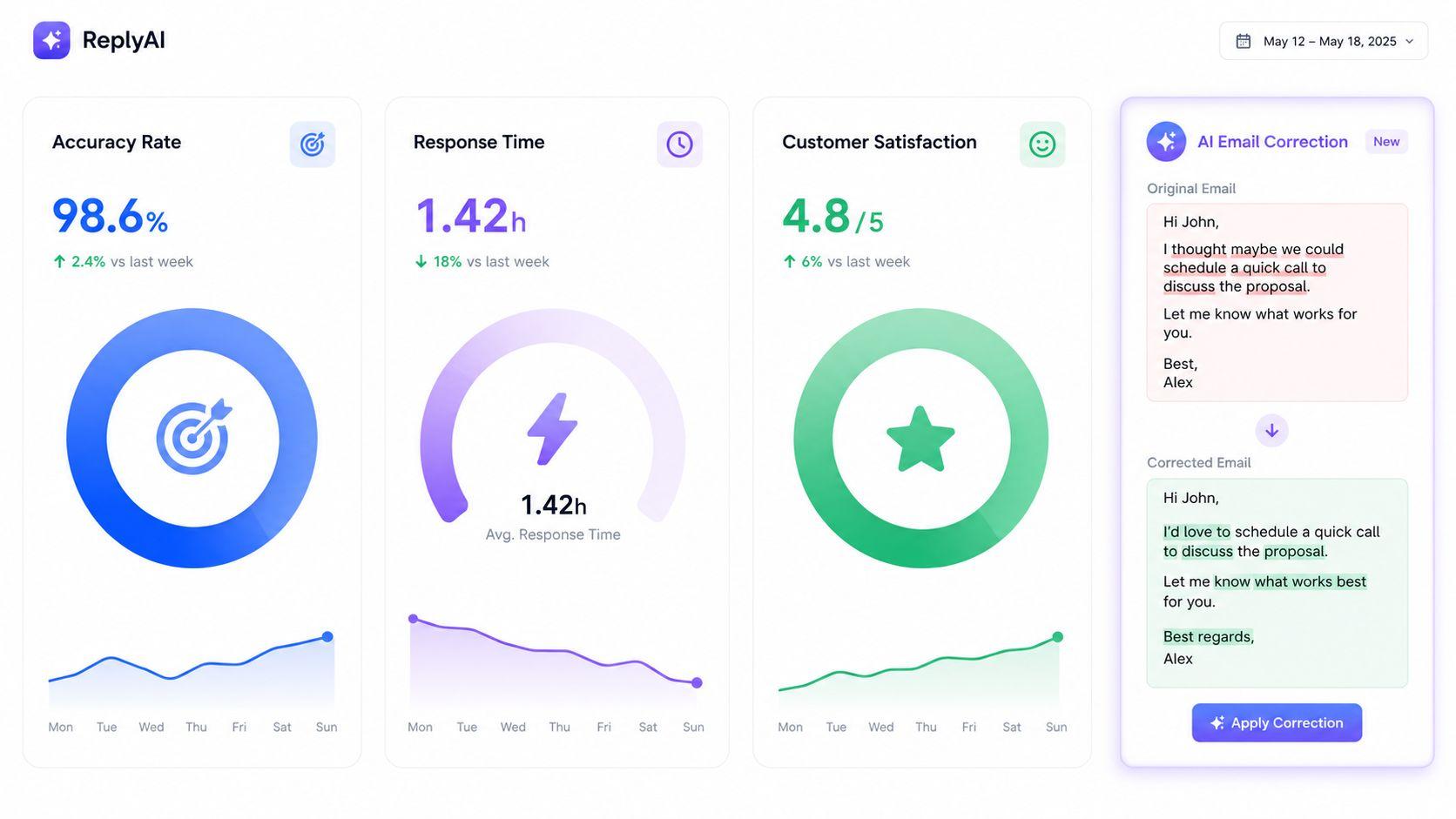
Setup is not a one-time job. Watch how the AI performs and adjust based on the data.
Metrics to track weekly:
- Classification accuracy: percentage of emails tagged correctly
- Average response time: how long from receipt to reply
- Escalation rate: how often the AI hands off to a human
- Resolution rate: percentage of emails closed without further follow-up
- Customer satisfaction: replies, ratings, or survey scores on AI-handled threads
When something looks off, drill into the misclassified emails and update your rules or training data. Implementing AI in email triage typically entails a phased approach to build trust and ensure accuracy. Start with low-risk categories, prove the system works, then expand.
Step 8 – Scale Your AI Email Triage System
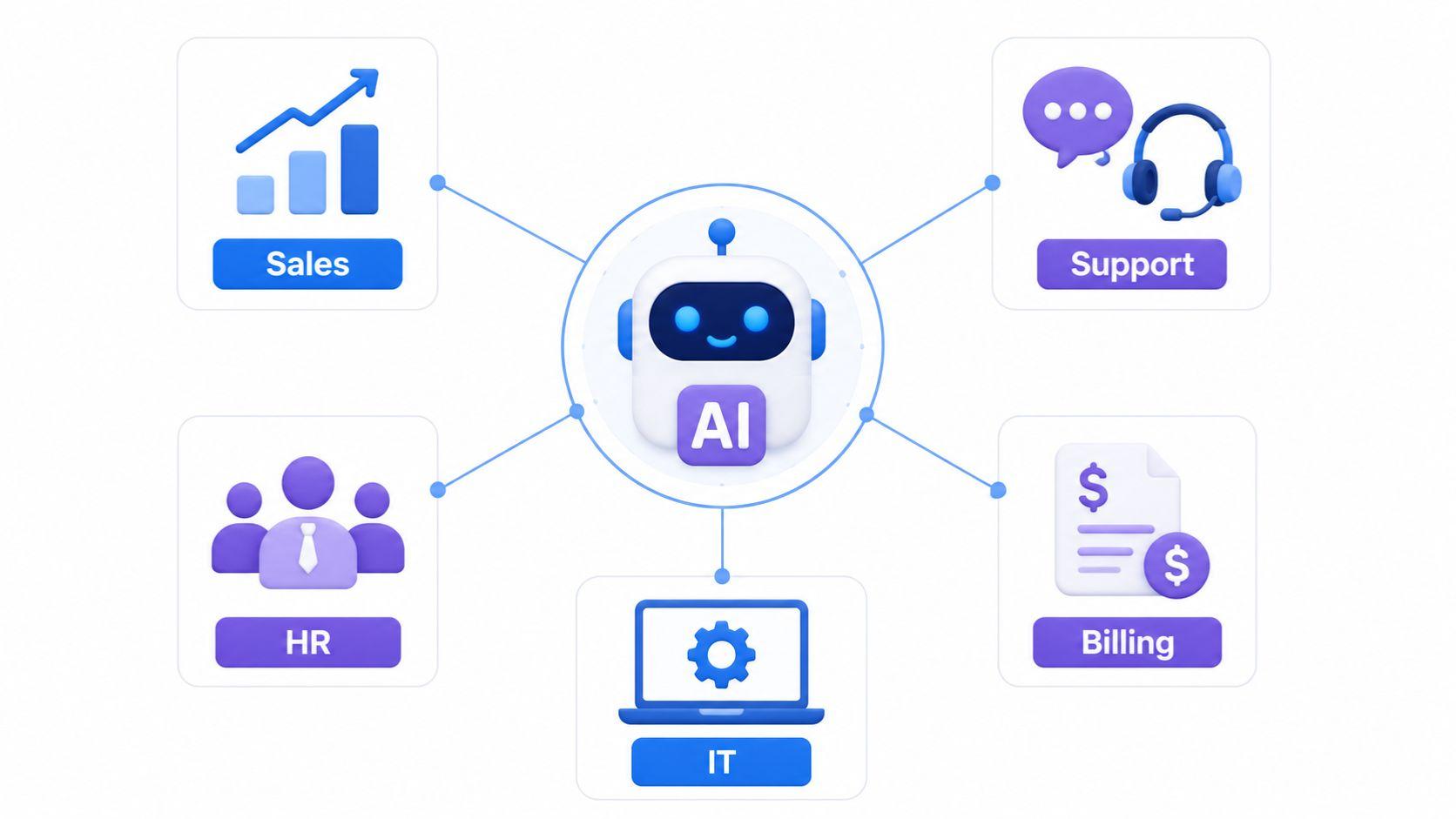
Once one inbox runs smoothly, expand to more teams and use cases.
Ways to scale:
- Add inboxes for sales, billing, partnerships, and HR
- Create role-specific workflows (a sales rep's AI handles different tasks than a support rep's)
- Connect more tools like your CRM, project management system, or analytics platform
- Build cross-team workflows where a sales lead triggers a follow-up task in another inbox
Real example: a startup begins with one support inbox handled by AI. Six months later, the same system handles sales, partnerships, and internal IT requests, each with its own rules but drawing on a shared knowledge base. AI tools can help organizations streamline their email workflows by automating the classification and routing of incoming messages, which reduces the time spent on manual sorting.
Common Mistakes to Avoid When Setting Up AI Email Triage
AI triage saves hours when set up properly. When it isn't, you end up cleaning up its mess, which can be worse than doing the work yourself. Here are the mistakes that cause the most damage.
Using Poor or Incomplete Training Data
If you train the AI on five old emails and call it done, expect chaos. Refund requests get sorted as general support. Replies sound like a robot wrote them, because one did, with nothing real to copy from. New product launches get treated as spam because the AI has never seen the language before. Relying solely on AI for email triage can lead to a loss of professional judgment, as AI may not grasp the nuances of client relationships or the importance of tone in communication, both of which are critical in email management. Thin training data makes that gap worse.
Over-Automating Without Human Oversight
Letting AI send every reply with no human in the loop sounds efficient until it isn't. A legal inquiry gets a templated "Thanks for reaching out!" reply. A customer whose service is down receives a cheerful FAQ link. A high-value lead gets the same generic follow-up as a cold subscriber. These moments erode trust, and once it is gone, the email channel becomes a liability rather than an asset.
Setting Vague or Inconsistent Triage Rules
If "urgent" means three different things across your rules, the AI cannot decide what to flag. Same with overlapping categories like "Support" and "Customer Issues" that mean the same thing but trigger different workflows. The AI ends up tagging randomly, and your team loses faith in the system within a week.
Not Personalizing AI Responses
A generic "Thank you for your email" reply tells the customer no one really read their message. AI summarizes long email threads into concise bullet points, highlighting key decisions and action items, but if you don't use that context in the response, replies stay flat. Personalized replies reference the customer's actual question, use their name, and match the tone of the original email. Without that, engagement drops and unsubscribe rates climb.
Poor Integration with Existing Tools
When the AI sits in a silo, things break. Emails get tagged in the inbox, but tags never reach your CRM. A high-priority lead is flagged, but the sales rep never sees a notification in Slack. Support tickets close in the helpdesk, but the email thread stays open. Seamless integrations with tools like Microsoft 365 and Slack are essential for legal teams to maintain efficiency and avoid requiring users to learn new interfaces. The same applies to any team where email is part of a bigger workflow.
Benefits of AI Email Triage for Growing Businesses
For a growing team, every hour spent on inbox sorting is an hour not spent on customers, product, or revenue. AI triage changes the math.
Concrete gains you can expect:
- Faster lead response: Replying within 5 minutes makes you 21 times more likely to qualify a lead than waiting 30 minutes. While the average company takes over 40 hours to respond, AI email triage flags and drafts replies instantly, capturing buyers when their intent is highest.
- Lower admin load: Transitioning repetitive tasks to automated workflows like AI email triage helps employees reclaim their time, driving an average 60% to 70% reduction in time spent on routine operational administration.
- Higher productivity: Handing baseline email classification and sorting over to intelligent automation yields immediate 20%-25% efficiency gains across organizational communication channels.
- Better security: Deploying automated inbound screening provides an essential first line of defense, filtering out highly sophisticated email threats, such as malicious phishing links and spam, with high precision before they reach human users.
Real scenario: a five-person agency was handling 400 client emails a week. After setting up AI triage, response times dropped from 4 hours to under 1 hour, and the owner reclaimed roughly a full day each week to spend on client strategy instead of inbox sorting.
How to Choose the Right AI Email Triage Tool
Most tools claim to handle email triage. Few do it well. Here's what separates a sorting tool from a real execution platform like Sintra.
Look for End-to-End Automation, Not Just Sorting
Basic tools label emails and stop there. You still have to open, read, and reply to every message. A real triage system reads the email, decides what to do, drafts the reply, sends it (or escalates), and updates connected tools, all without you opening the thread. Tools for email triage can be categorized into assisted triage, which speeds up users, and autonomous triage, which performs tasks independently. Autonomous is what saves real hours.
Evaluate Context Awareness and Personalization
A tool that doesn't know your brand voice writes replies that sound like a stranger sent them. Look for platforms with a centralized knowledge layer where you upload FAQs, past emails, product info, and tone guidelines once. Every workflow then pulls from the same source, so a reply from your sales AI sounds like a reply from your support AI, both matching how your team actually writes.
Check Integration with Your Existing Tools
Before signing up, list every tool your email touches: CRM, helpdesk, calendar, Slack, project management, and billing. Check that the AI platform connects to each one natively, not through clunky workarounds. Modern legal email triage platforms offer extensive integration capabilities with common legal technology, including document management systems, e-billing platforms, and collaboration tools. The same standard applies across industries. The integration of AI tools must ensure seamless integration with existing email systems and adhere to strong security protocols.
Assess Workflow Control and Human Oversight Options
Good tools give you knobs to turn. You should be able to set which categories auto-send, which need approval, and which always escalate. Look for features like:
- Custom approval thresholds (e.g., refunds over $100 need review)
- Sentiment-based escalation (negative tone triggers a human)
- Role-based routing (legal questions go to legal, not support)
- Audit trails so you can see exactly what the AI did
That balance of automation and control is what keeps the system trustworthy as it scales.
Ready to automate your inbox with AI?
If your inbox is still running your day, the cost is higher than the cost of wasted hours. It's missed leads, slow replies, and a team buried in admin instead of growth. AI email triage handles all of that for you, from sorting to drafting to following up, while keeping your tone and rules consistent.
Sintra AI brings a full AI team into your workflow, not just a sorting filter. Each AI handles a real role, learns from your business context, and works across the tools you already use. Setup takes minutes, and the time you save adds up from day one. Get started with Sintra AI and turn your inbox into a system that works for you.
AI Email Triage FAQs
What is AI email triage, and how does it work?
AI email triage uses machine learning and natural language processing to automatically read, categorize, prioritize, and route incoming emails. It scans each message for intent, sentiment, and urgency, applies tags, and either drafts a reply, sends one, or escalates to a human based on rules you set.
How accurate is AI in managing and sorting emails?
Accuracy depends on training data quality. With well-prepared examples and consistent rules, AI triage routinely classifies emails with 90% accuracy or higher, improving as it learns from corrections. Vague rules or thin training data drop accuracy fast.
Can AI respond to emails automatically without human input?
Yes, for routine scenarios like FAQs, confirmations, and standard follow-ups. For sensitive or high-value messages, most teams use a hybrid setup in which AI drafts the reply and a human approves it before sending. This keeps the speed high without losing judgment on important conversations.
Is AI email triage suitable for small businesses?
Yes. Small teams often benefit the most because they have the least time to spend on inbox management. A solo founder or a five-person team can save 4-7 hours per week by automating sorting and replies, freeing up time for customer work and growth.
How long does it take to set up AI email triage?
Basic setup, connecting your inbox and applying default rules, takes under an hour. Full setup with custom categories, trained brand voice, integrations, and approval workflows usually takes a few days to a week, depending on how many tools you connect. Most teams see results within the first two weeks.
Related articles